Step-by-step guide of how to purchase a subscription product from the Caldera web store, including instructions on using a voucher and reviewing subscription details.
Continue reading or watch the following video (in English):
How to purchase a subscription?
-
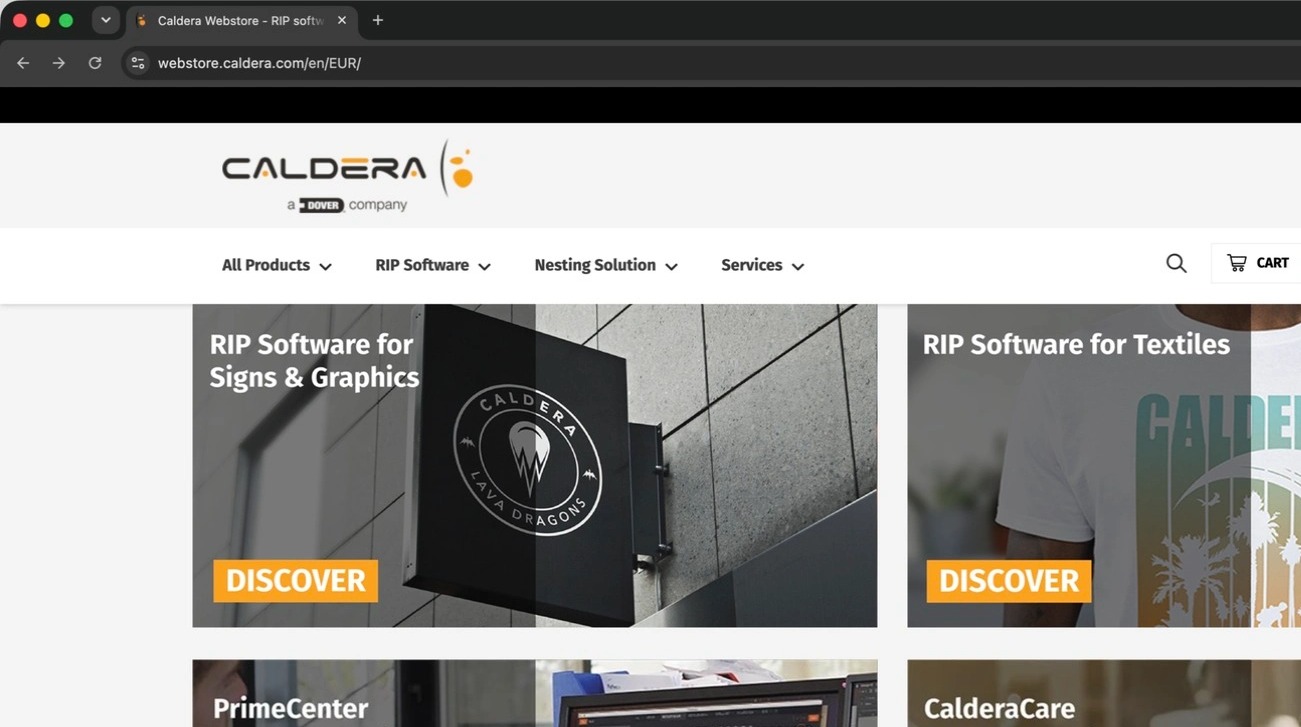
Go to https://webstore.caldera.com/.
Info
Need an account? Click Create account to open the registration form in WorkSpace. For step-by-step help, see How to create a Caldera account.
- Click Login to open the single sign-on (SSO) page.

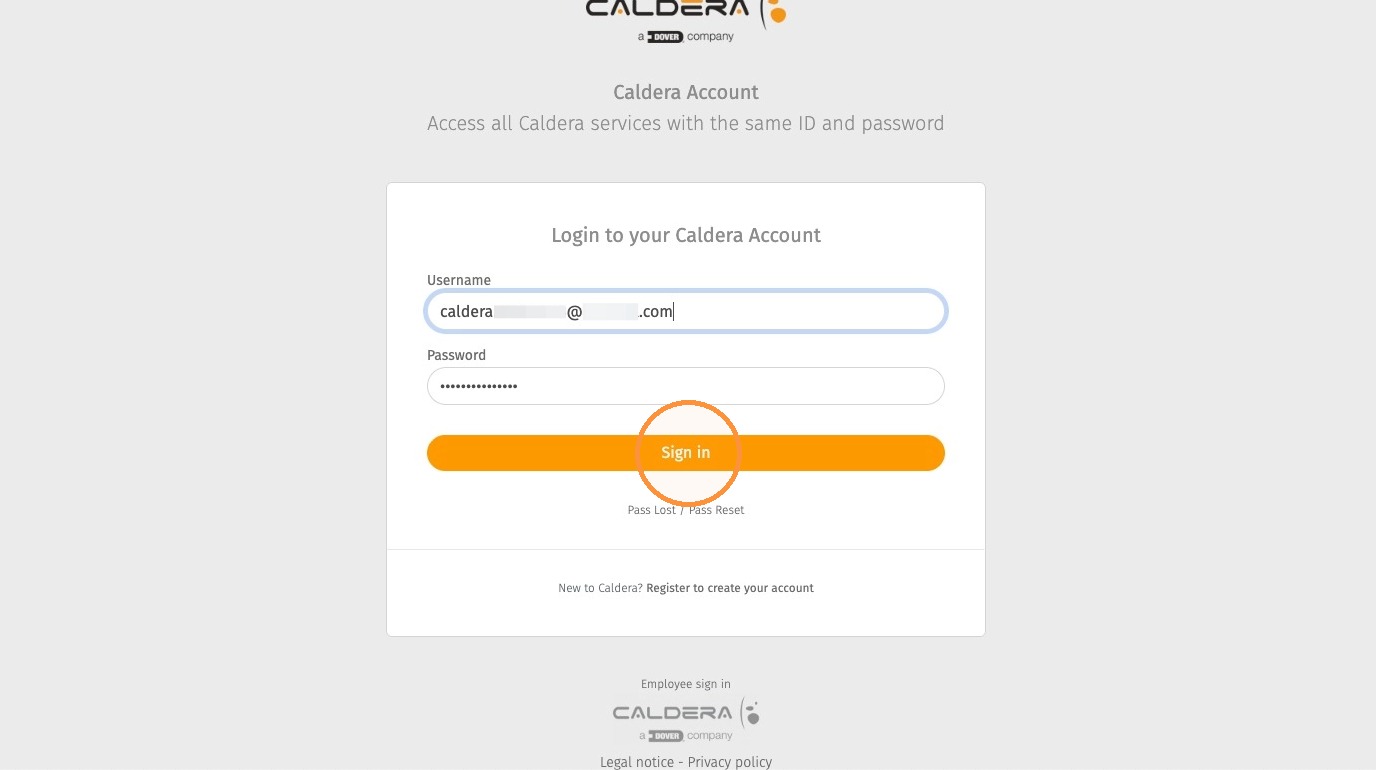
- Enter your Caldera credentials, which are the same credentials used for WorkSpace, then click Sign In.
- Select the product family you want to view.

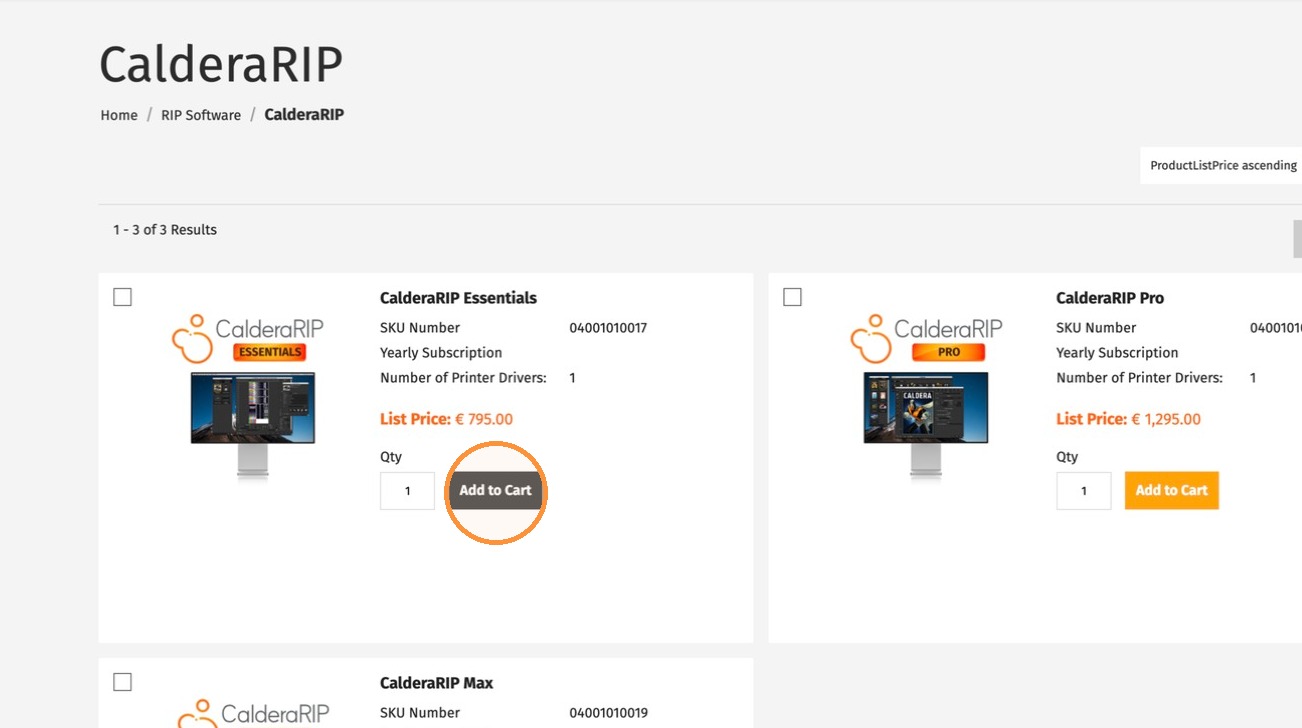
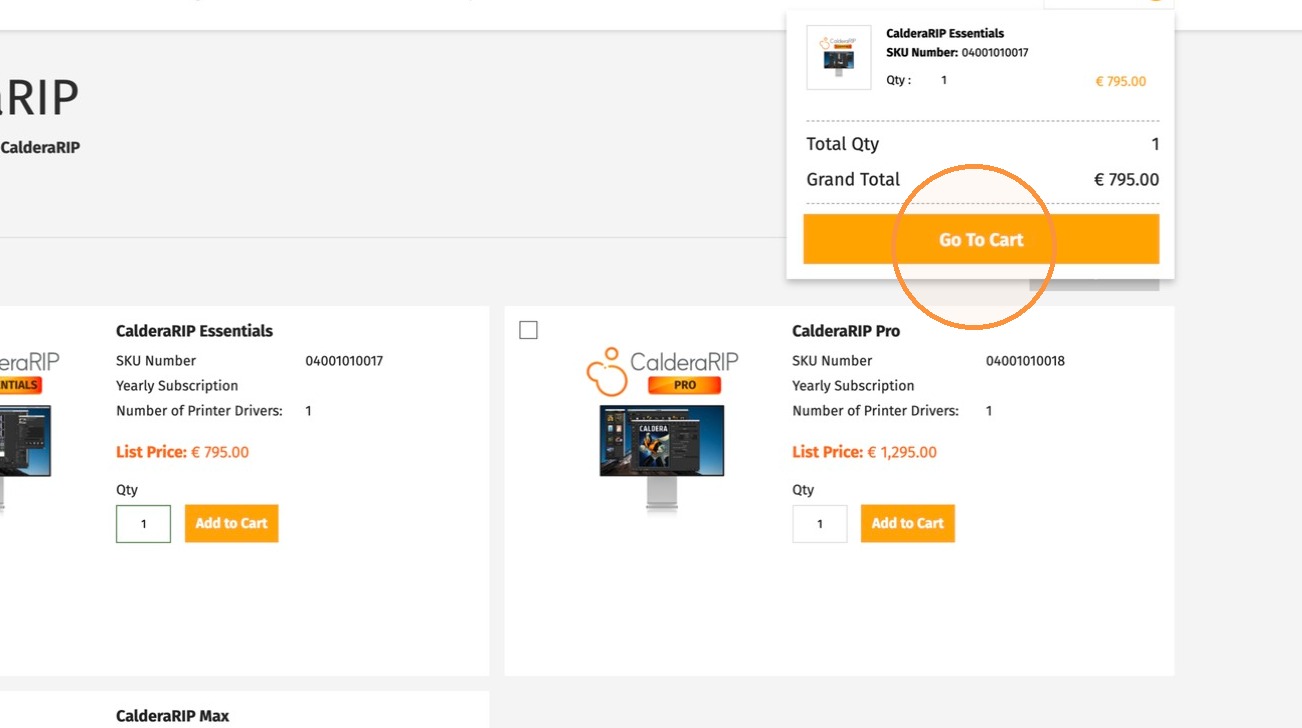
- Select your Caldera subscription, then click Add to Cart.
- Open your cart.
-
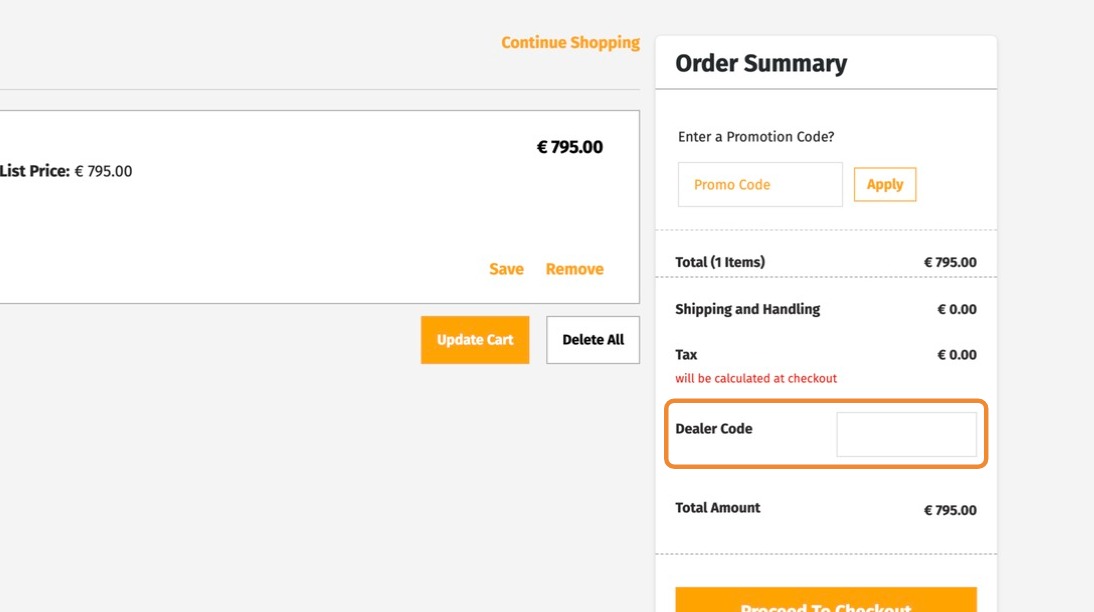
If your reseller provided a Dealer Code, enter it in the Dealer Code field. You can add, change, or remove it before checkout.
Info
Dealer Codes contain numbers only and can be up to 10 digits long. If you do not enter a Dealer Code, the purchase is processed as a direct sale.
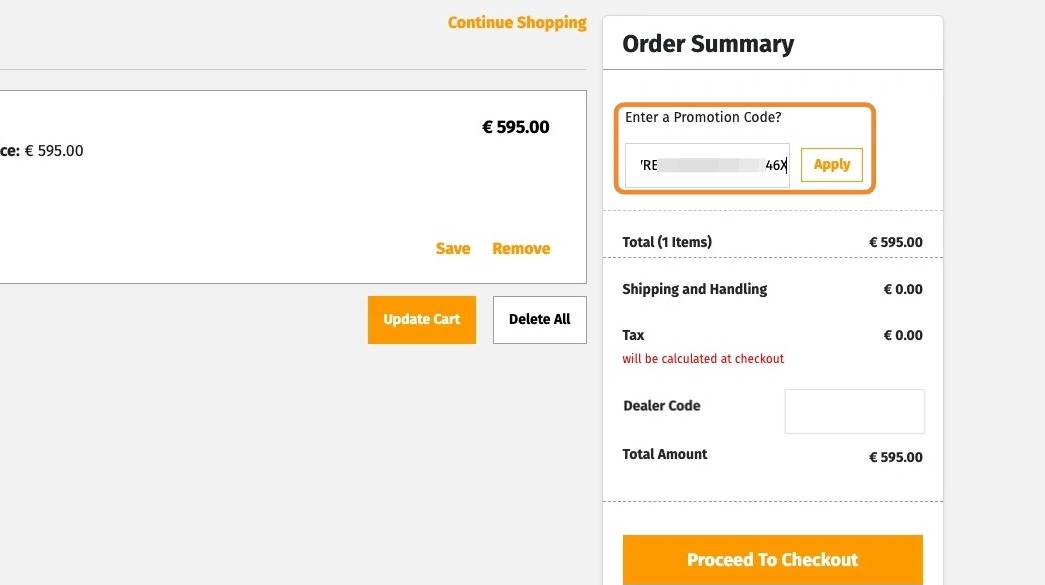
- If you have a voucher number, make sure it is valid for the product in your cart, then enter the 20-digit code in the Promo code field.
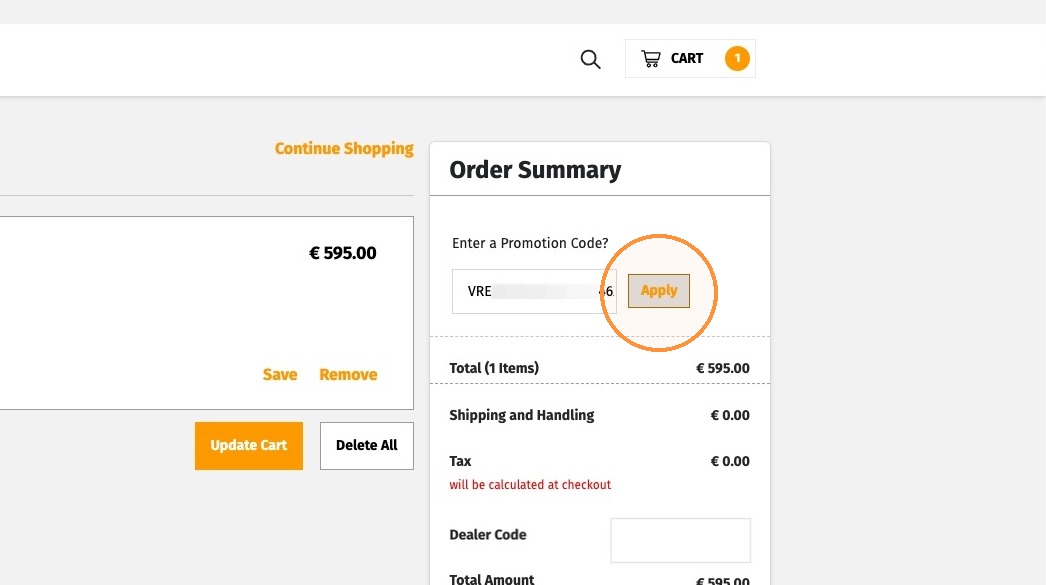
- Click Apply. If the voucher is valid, it appears below the product in your cart. Depending on the voucher, the order total may be zero.
- Verify that the shipping and invoice addresses are correct, then click Proceed to Checkout.
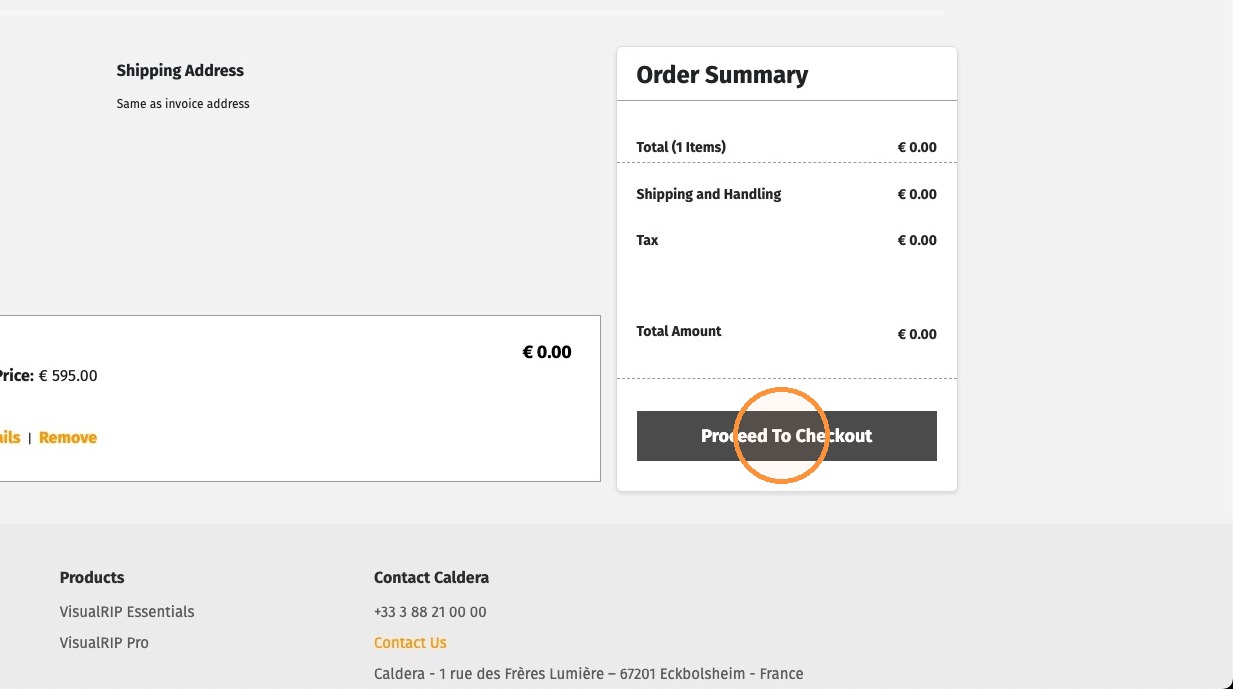
- If no payment card is registered to your account, add one.
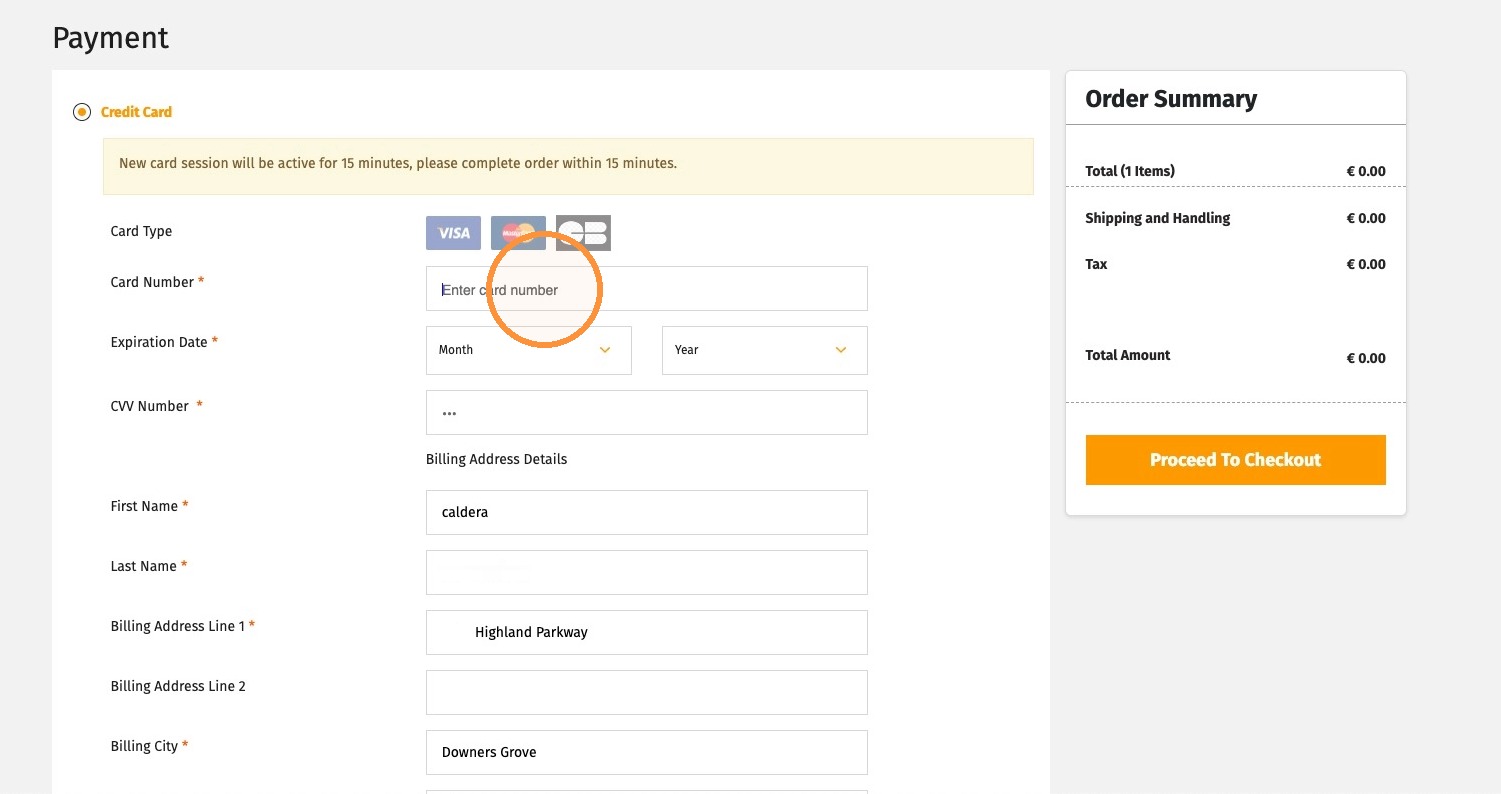
-
Enter your card number, expiration date, and security code. Verify the address, then click Proceed to Checkout.
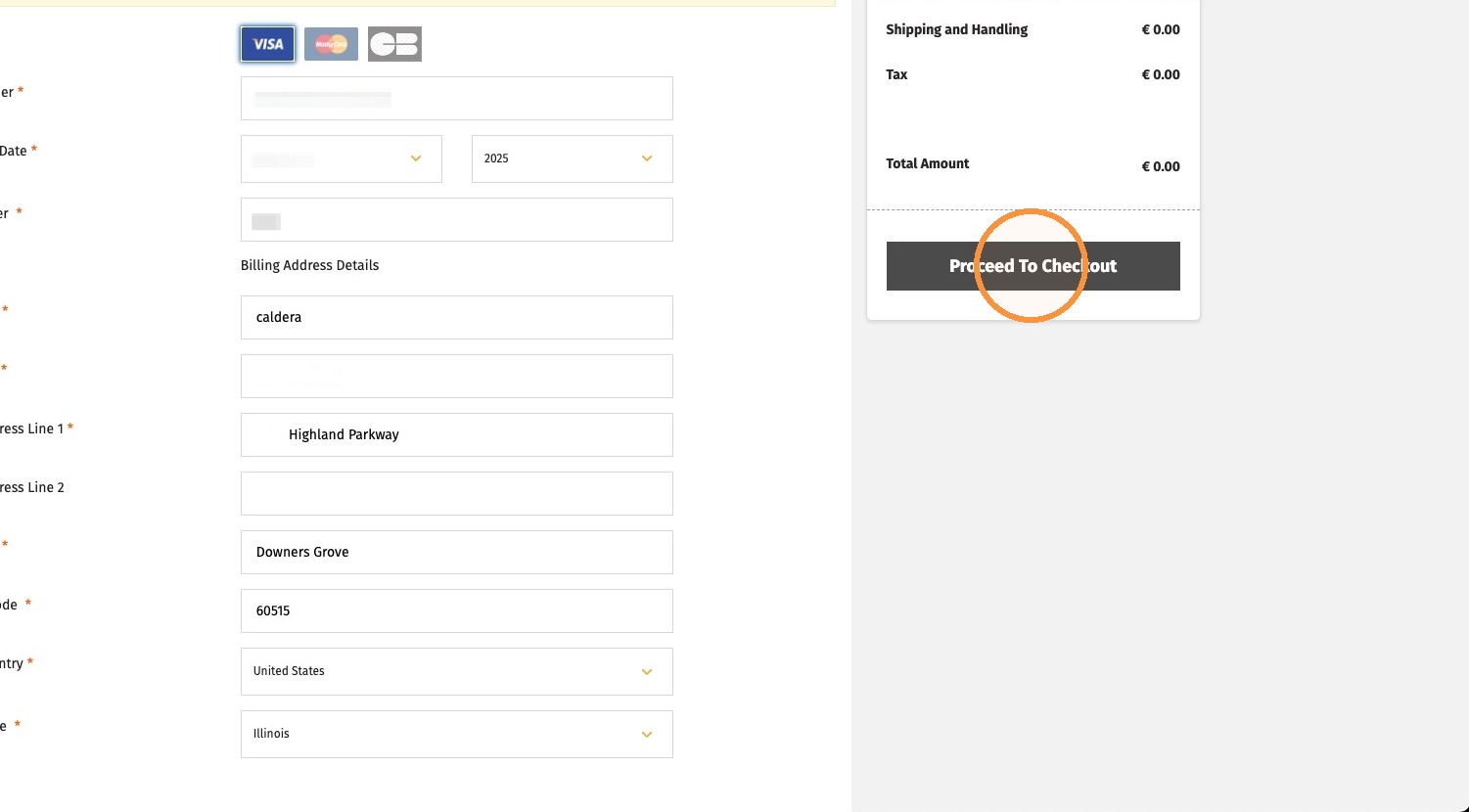
Info
If you used a voucher, your card is not charged at this stage; it is charged on the subscription anniversary date.
- Review the order and the Terms and Conditions.
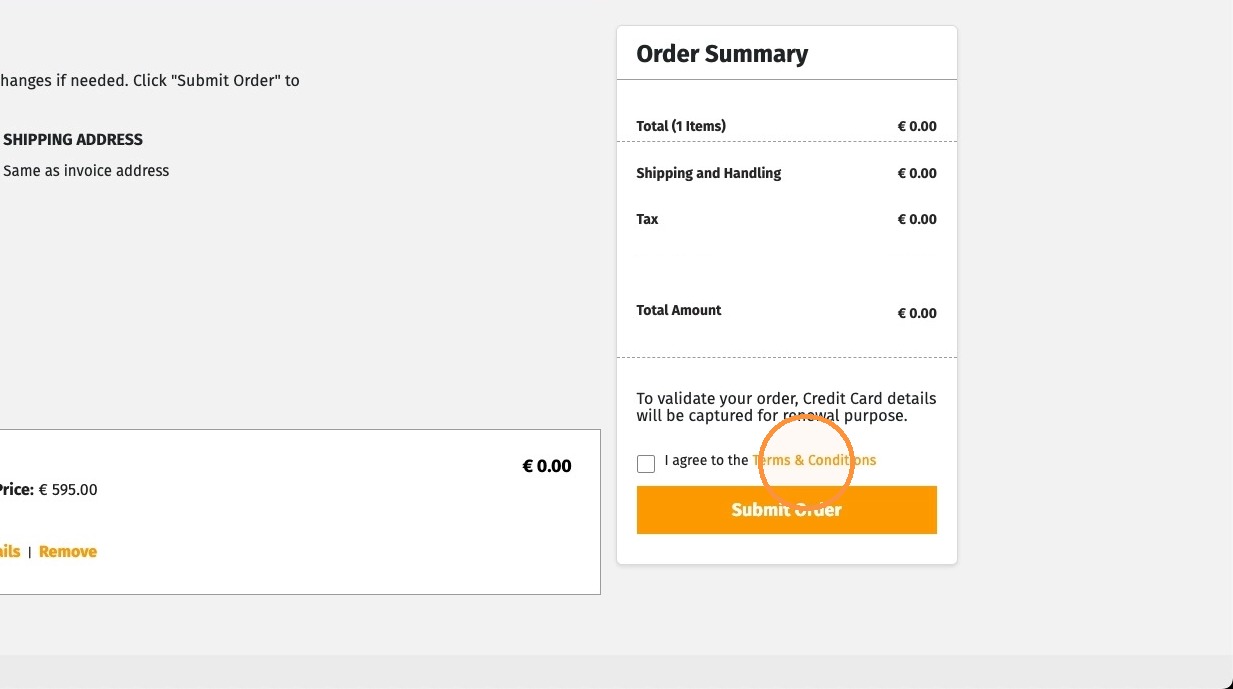
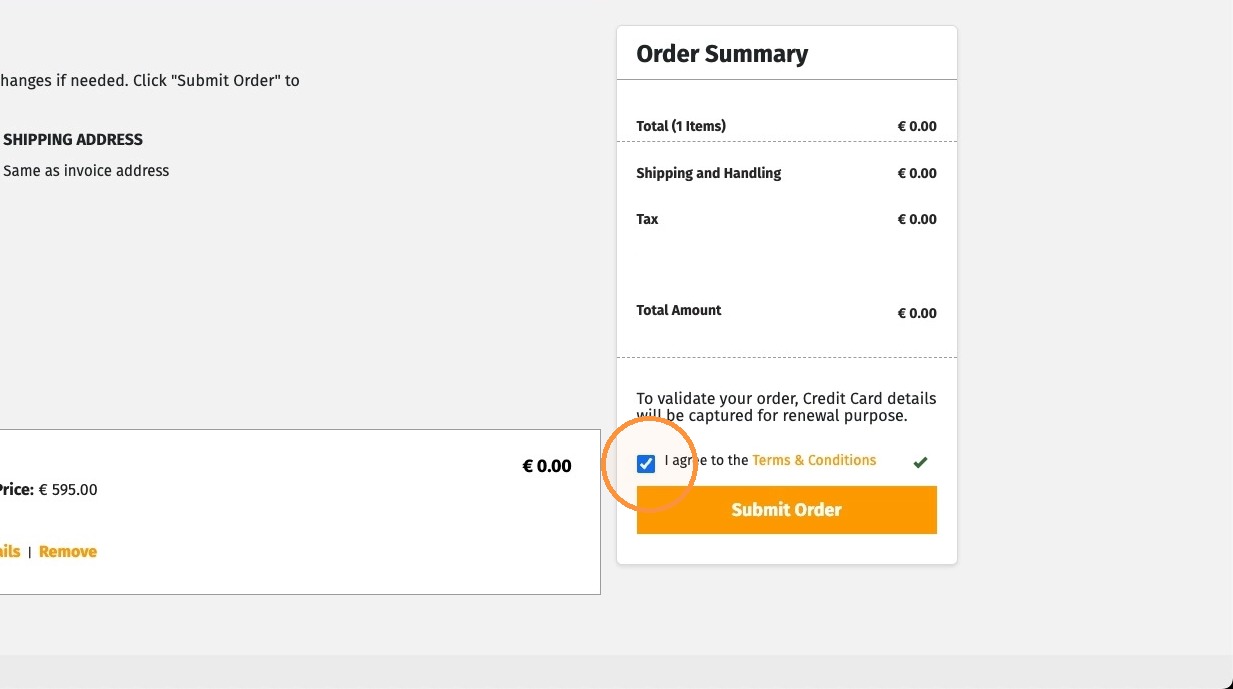
- Agree to the Terms and Conditions.
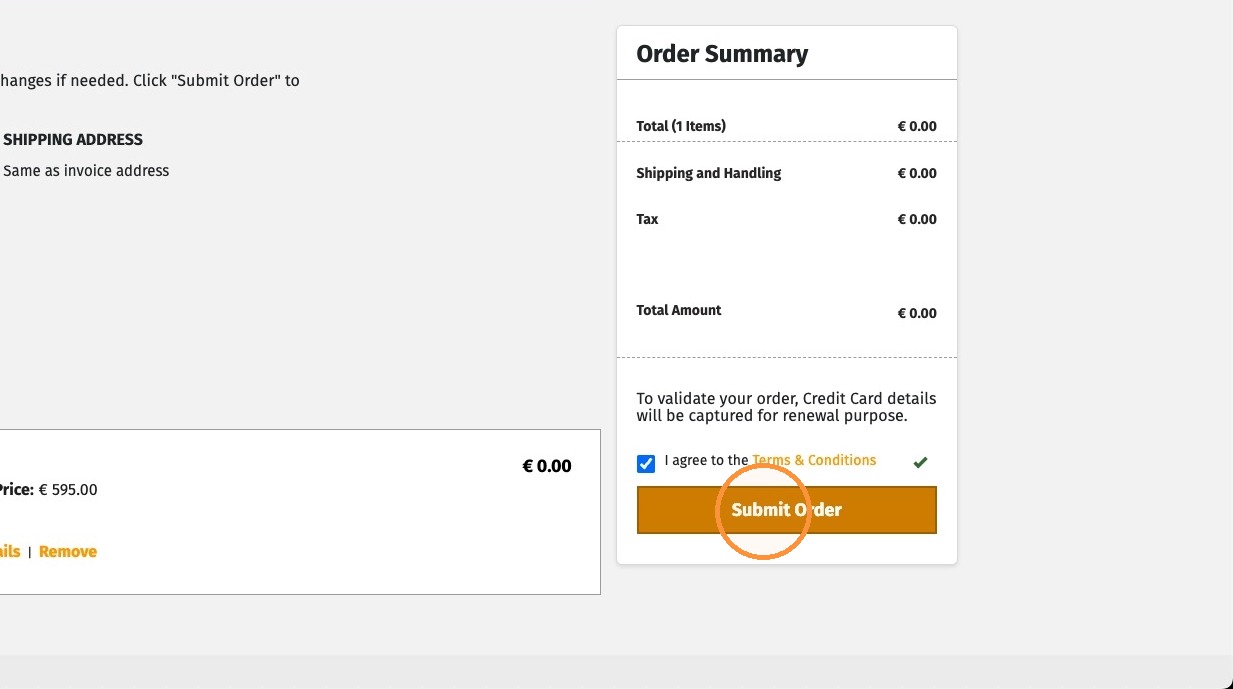
- Click Submit Order.
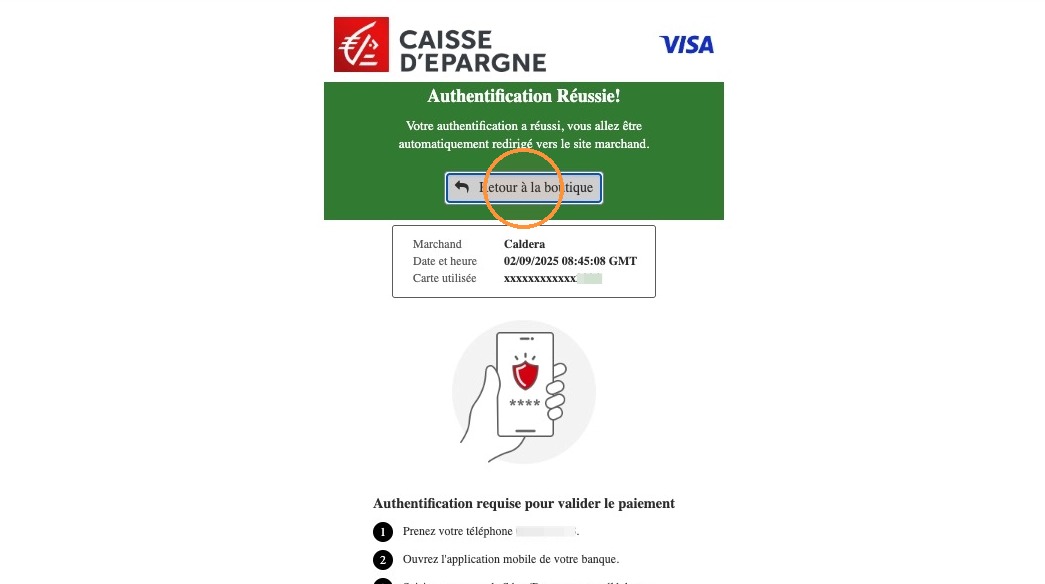
- Depending on your bank, you may need to authorize the transaction.
- The receipt confirms that your order has been submitted.
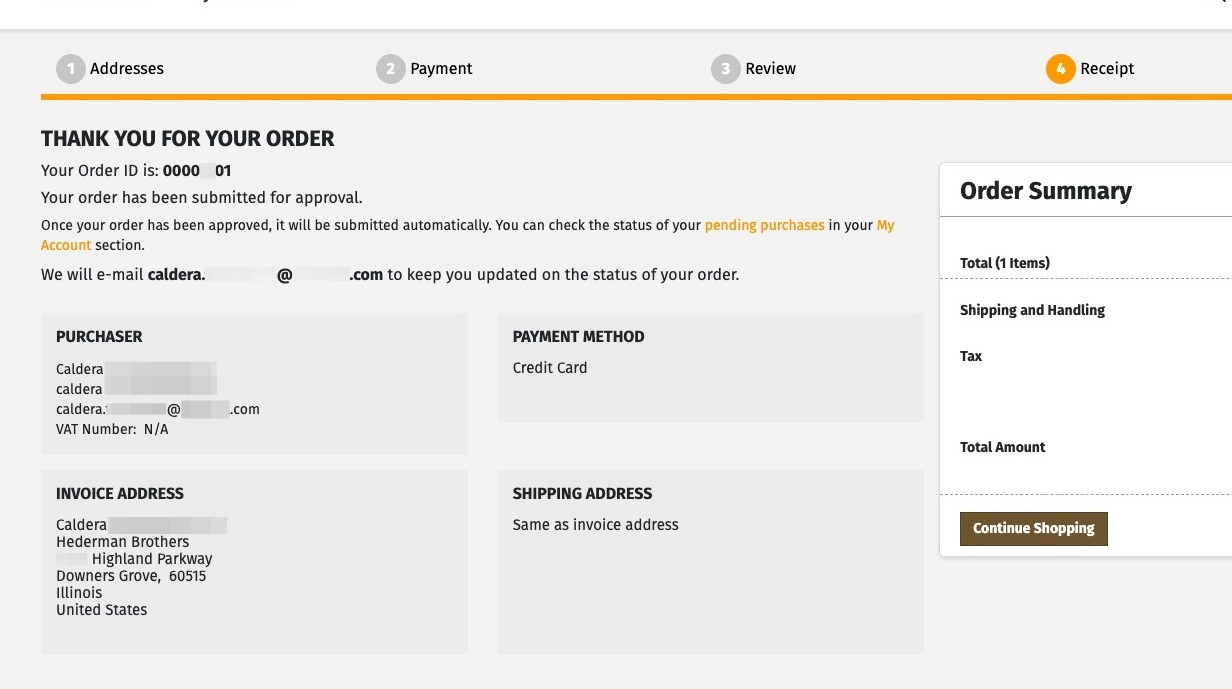
- You receive an email with your order details.
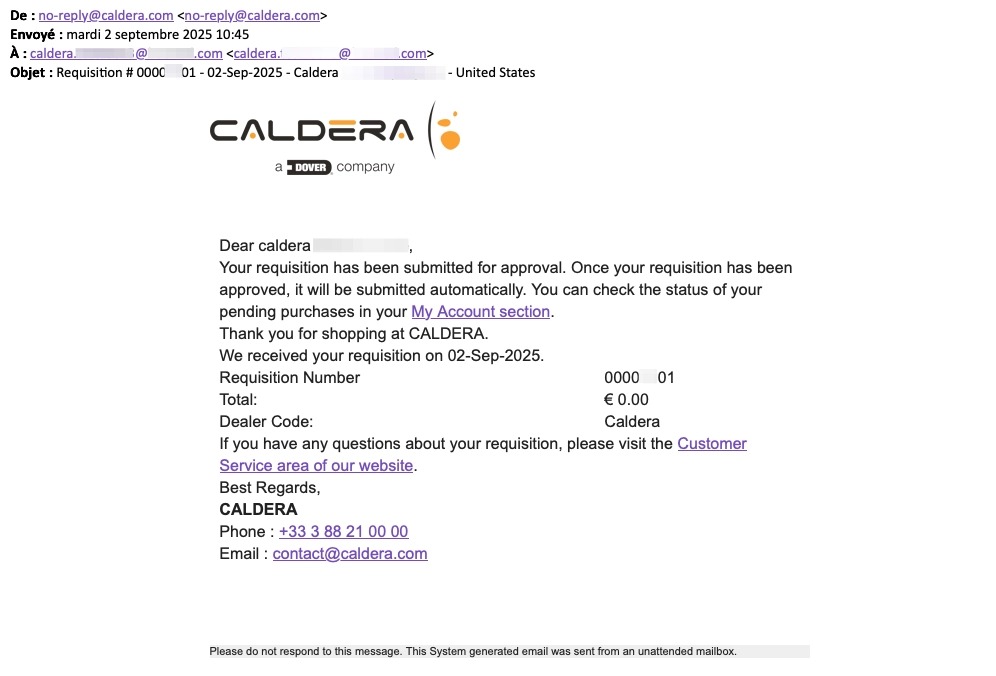
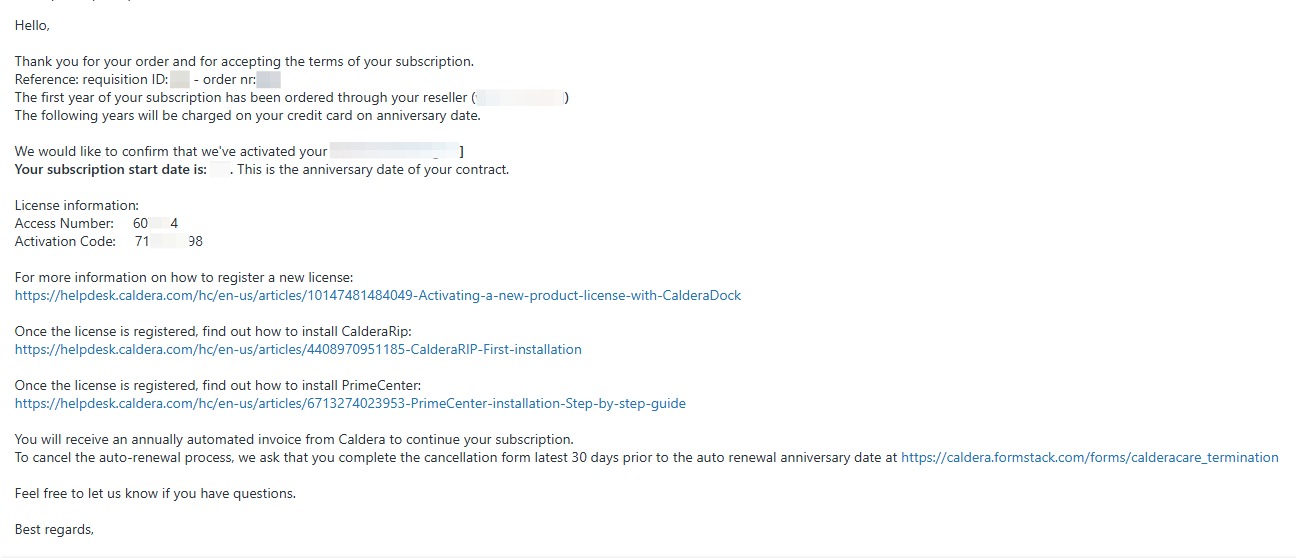
- After your order is approved, you receive another email with instructions to activate your license and install the product, as well as an order-confirmation PDF.
(Optional) How to check the status or details of your purchase?
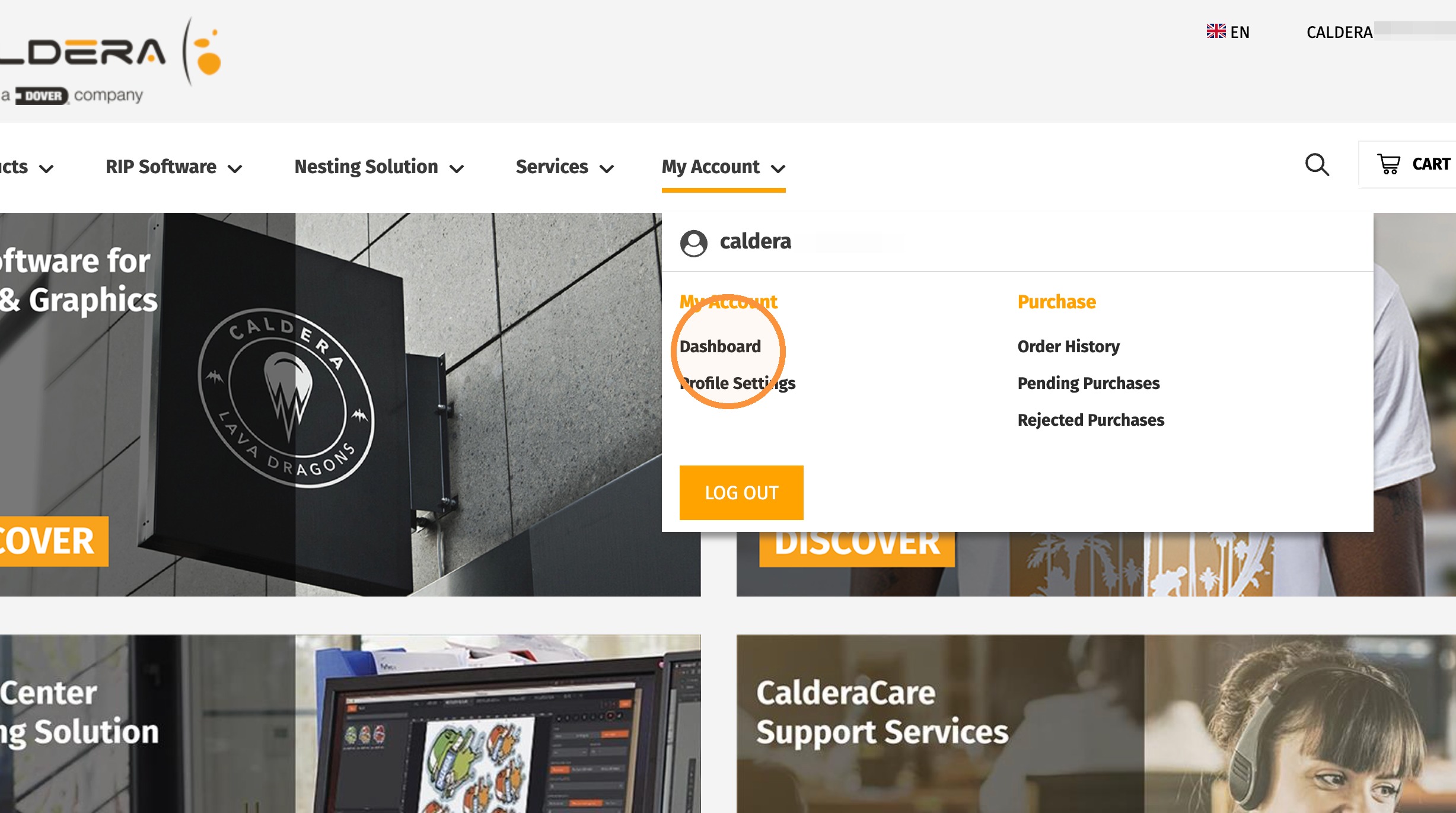
- Return to the web store, point to My Account, then select Dashboard.
- Expand the Subscriptions menu.
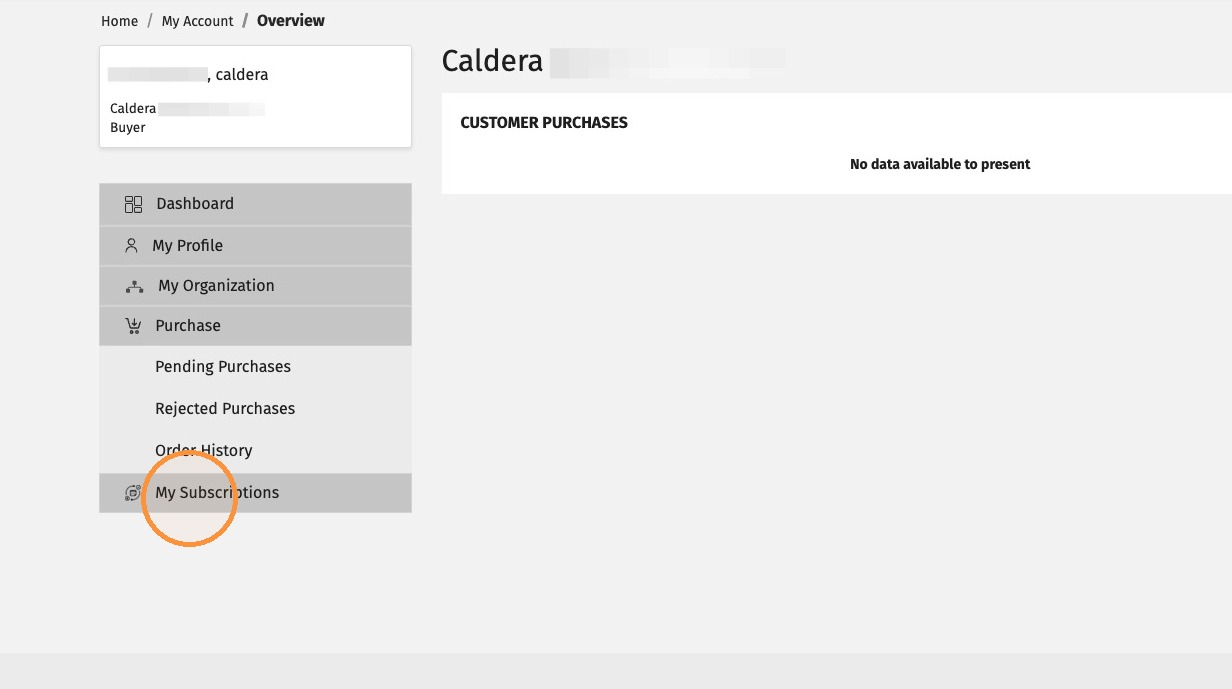
- Select My Subscriptions.
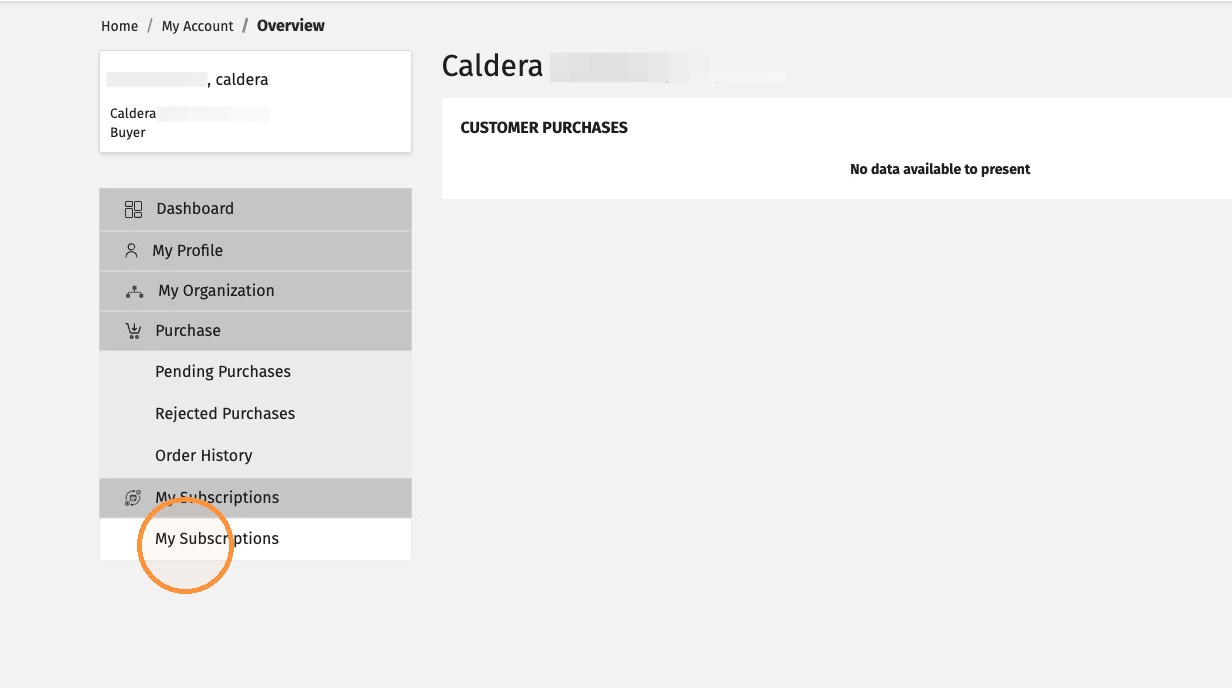
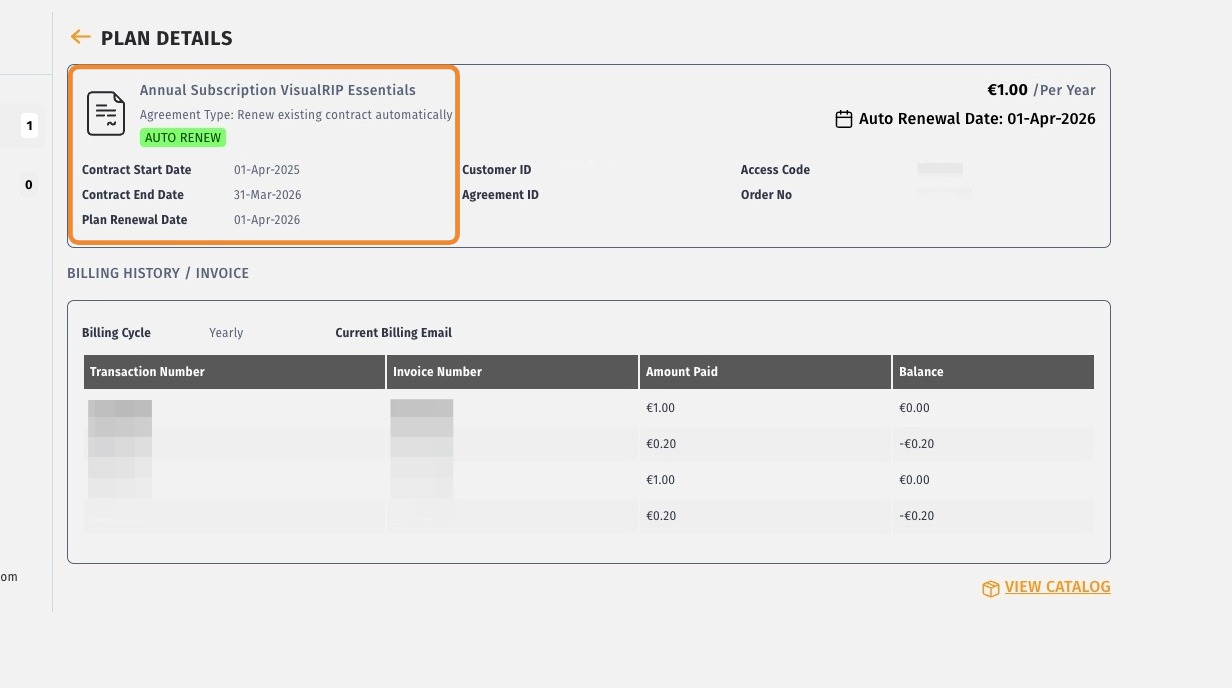
- Your approved order appears in the list. Select View details to review it.
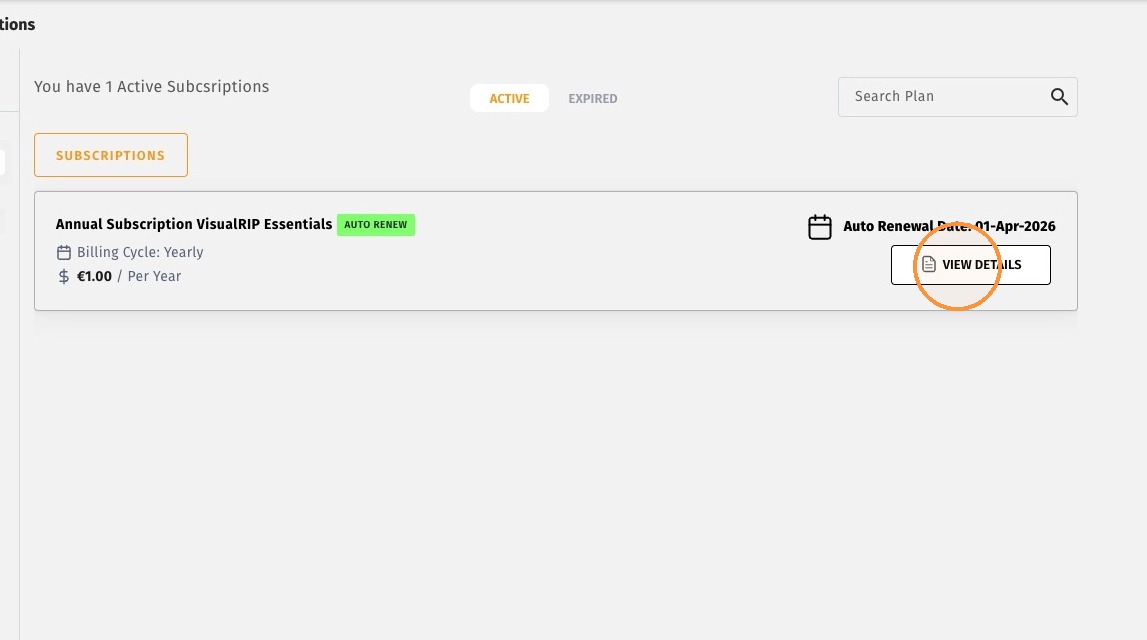
- Review the subscription details, including the contract start and end dates.