The following actions are listed at the bottom of the FileMan window:
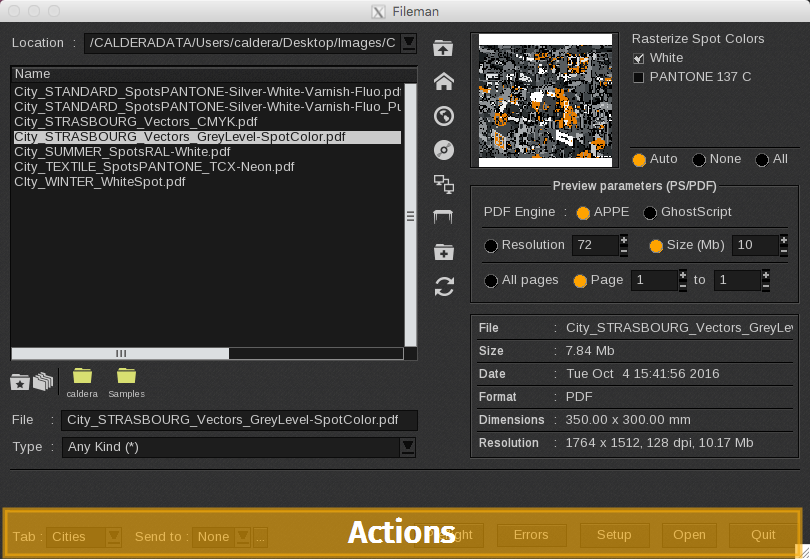
- Tab: This option allows you to specify the tab in the ImageBar where you want your file to be uploaded. By default, this is set to "Current," meaning the file will be uploaded to the tab that is currently selected.
-
Send to: For Workflow or QuickPrint users, this field allows you to select the automation to which the file should be sent.
Info
The Workflow or QuickPrint must be properly configured and running beforehand for the selected action to start automatically.
-
Errors…: Opens a window for reviewing any potential file management errors.
Info
The loading and saving of images are processed as background tasks, which is especially useful for large images. The Errors window allows you to view the most recent errors encountered during the loading or rasterizing of images.
- Setup…: Opens the Setup window to access the advanced settings of the file manager.
- Open: This button is an alternative to double-clicking on a file. When you click Open, the file is added to the ImageBar.
-
Quit: Closes the FileMan module.
Info
If you click on it while files are still being loaded, you will be prompted to either continue uploading them in the background or cancel the upload.