TheImageBar is divided into three parts:
- Thumbnails: View of the images with information icons
- Images menu: Composed with the Images menu and the Tabs menu
- Filter area
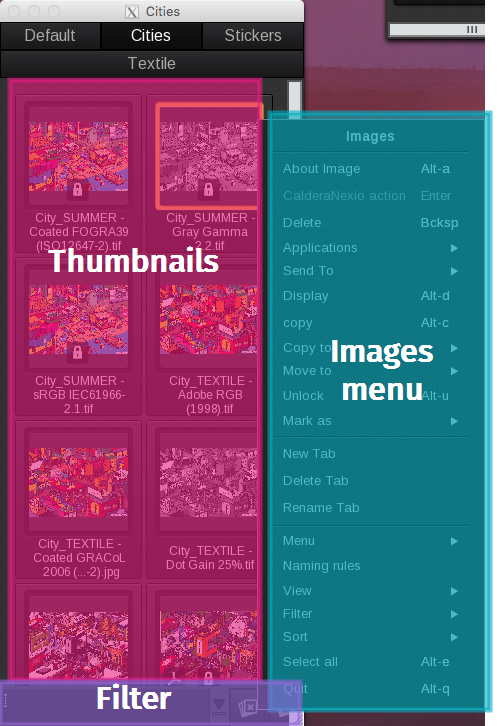
Thumbnails
Files loaded in the ImageBar display different icons to communicate the file's characteristics quickly. Here are the definitions of the icons:
| Cutter |  |
The cutter icon indicates that CalderaRIP has identified cut contours within the file. |
| Adobe PDF |  |
The Adobe PDF icon identifies the file type as a PDF. |
| Compose |  |
The edit icon indicates the file was created with the Compose module. |
| PostScript File |  |
The PostScript File icon identifies the file type as an EPS or PS. |
| Tiling |  |
The Tiling icon indicates the file was created with the Tiling module. The + symbol on the upper right corner expands the file to display all the tiles. |
| Lock |  |
The lock icon indicates the file is currently being used in a module such as the print management one, or Tiling, etc. The file cannot be sent to the trash without unlocking it first. |
| Done mark | 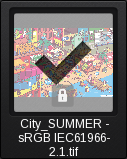 |
This mark is automatically added when a job is finished being processed by Nexio. You can also apply or remove this mark manually by right-clicking on the image and going to "Mark as" and then "Done" or "Undone". |
Done mark after V17.1
The following feature was launched in V17.1 and was exclusive to CalderaCare subscribers until V18 (when it was included for all users).
As of V17.1, there is another option in the main window of the Print module that allows you to mark processed images as done:
The mark will be added when using the following Actions: Print, RIP, and Nest (when the nesting has been either printed or ripped).
Limitations
- Does not work in Client / Server.
- Does not handle a multicopy of one file (for example, a file with a SmartImport tag). If one copy has been printed, it's marked as done.