Create perfectly optimized layouts to save time and reduce media waste, by using PrimeCenter's Nesting module.
PrimeCenter’s nesting optimizes layouts to reduce media waste and save production time. Depending on your workflow, you can use standard nesting, sorting, or ganging to organize jobs efficiently.
This guide covers:
- Setting up nesting: General nesting options
- Sorting jobs: Prioritizing and ordering jobs within a nest
- Ganging jobs: Grouping jobs into separate nests based on metadata
Info
Starting from PrimeCenter V4.0, when you manually insert images in the Studio, they are automatically aligned for better visibility. This alignment is purely for display purposes and does not replace nesting, which optimizes media coverage.
Accessing the nesting settings
Select a recipe and go to the Nesting module .
By default, when you create a new recipe, a True shape nesting is already included. You can simply click on it to open its configuration.
PrimeCenter V4.0
If needed, you can:
- Remove the nesting by clicking Delete .
- Re-add the nesting by clicking the button and selecting Nesting in the tool list.
Warning
If you remove the nesting from a recipe, we cannot guarantee the accuracy or efficiency of the layout. It is strongly recommended to include a nesting step to ensure optimal results.
Basic options
PrimeCenter V4.0
PrimeCenter V4.3
Nesting type
Watch the video below for an explanation of the nesting types:
Choose how shapes are arranged within the layout:
|
|
Nesting optimization
Learn about nesting optimization in this video:
Video based on PrimeCenter V3
📌 Spacing and orientation
-
Distance between shapes / Spacing between images: Defines the margin between images.
0 mm
20 mm
-
Rotation step / Rotation increment: Controls rotation angles for better optimization. Lower values allow more rotations but increase processing time.
90°
5°
📌 Maximum optimization time / Nesting duration
Controls how long the software spends optimizing a layout. A shorter time gives quick results, while a longer time maximizes media usage.
Layout name template
Define a naming pattern for generated layouts using metadata. Layout names can also be reused as a reference in print and cut file name templates.
For more information on extracting metadata from file names, and for a complete list of available metadata with their definitions, see Automating workflow with metadata.
Advanced nesting features
PrimeCenter V4.0
PrimeCenter V4.3
Watch how ganging and sorting work in this video:
Video based on PrimeCenter V3

 Sorting files
Sorting orders images within a single nest using specific metadata, making it easier to group customer orders while maximizing material efficiency.
➡️ Learn more about Sorting files
Ganging files
Ganging groups images into separate layouts based on metadata, ensuring files are processed independently when required.
➡️ Learn more about Ganging files
Format-related constraints
-
Nesting direction / Nesting orientation for sheet format: Defines how pages are filled.
Horizontal (fill width)
Vertical (fill height)
-
Min/Max chunk length / Chunk length for roll format: Splits large nests into smaller chunks for easier printing and cutting.
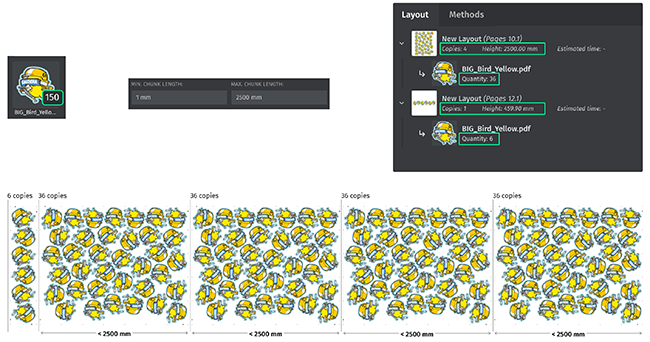
Nesting threshold / Automatic layout generation
PrimeCenter V4.0
Watch this video to see how the nesting threshold works:
For automatic and semi-automatic recipes, a Minimum media coverage must be reached before a layout is generated. If not, the software waits for additional files until:
- Maximum waiting time is reached.
- Start time generates layouts at a fixed moment.
Info
Starting from PrimeCenter V4.2:
-
You can configure up to 5 nesting start times to organize your production.
PrimeCenter V4.2
- You can force layout generation without waiting for nesting thresholds for urgent jobs.
📌 Minimum media coverage options
- Custom: Set a specific fill percentage.
-
Medium/Good: Uses predefined values from the media settings.
PrimeCenter V4.3
For automatic and semi-automatic recipes, you can optimize media usage by setting triggers for layout generation. Instead of generating layouts immediately, the software can keep them pending until conditions are met.
📌 Media coverage threshold
- Use the medium or good coverage values defined in your media settings,
- or set a custom coverage value directly here.
When the threshold is reached, the pending layout is automatically generated.
📌 Time trigger
You can also, or instead, define a time-based trigger:
- Set a delay: time to wait after the last file is imported,
- or schedule fixed times, up to 5 per day, to generate layouts.
This allows you to align nesting with your production schedule while still optimizing media usage.
📌 Without triggers
If no trigger is enabled, layouts are generated as soon as possible, right after the Nesting duration is finished.
Force layout generation
When triggers are active, you can always force layout generation to immediately generate pending layouts if needed.