This article explains how to assign drivers to your Caldera license so they are available in your software.
If your license includes a limited number of drivers, you must first assign the ones you want to use. The process is the same for all Caldera software, whether for printer drivers or cutter drivers.
Assign a driver to an already activated software license
If your license is already activated and you need to add, remove, or replace a driver, use CalderaDock and follow the steps below.
Recommended method: assign drivers in CalderaDock
- Launch CalderaDock.
-
Click Licenses:
-
Select the desired product from the sidebar, locate the license, and click the Edit icon:
Warning
If you receive an error message while trying to edit the license, make sure you are logged in to CalderaDock with the account associated with that license. If the issue persists, contact Support.
-
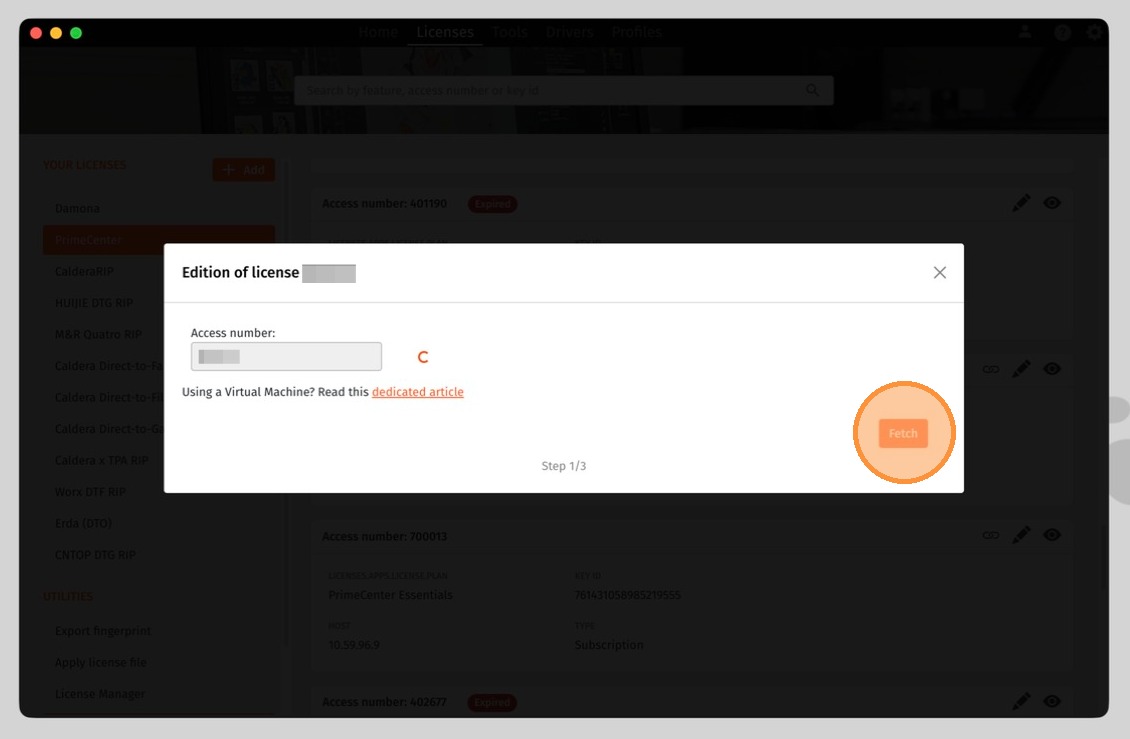
Click Fetch to retrieve the license details:
-
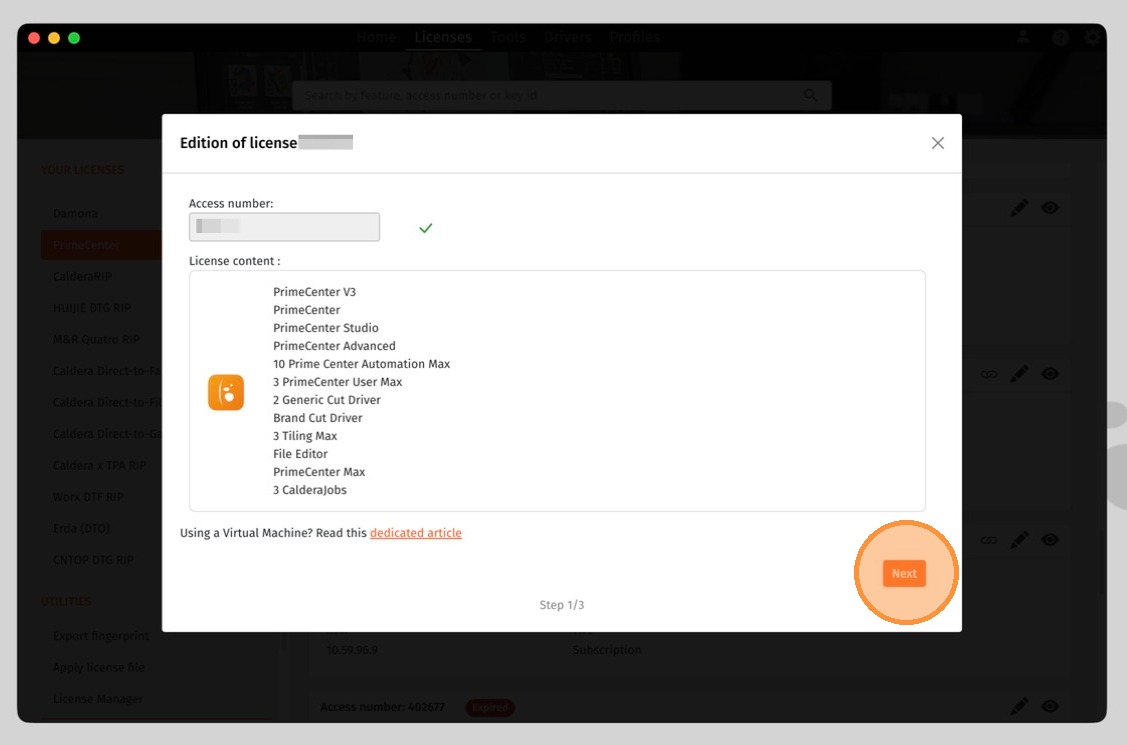
Click Next to proceed to device selection:
-
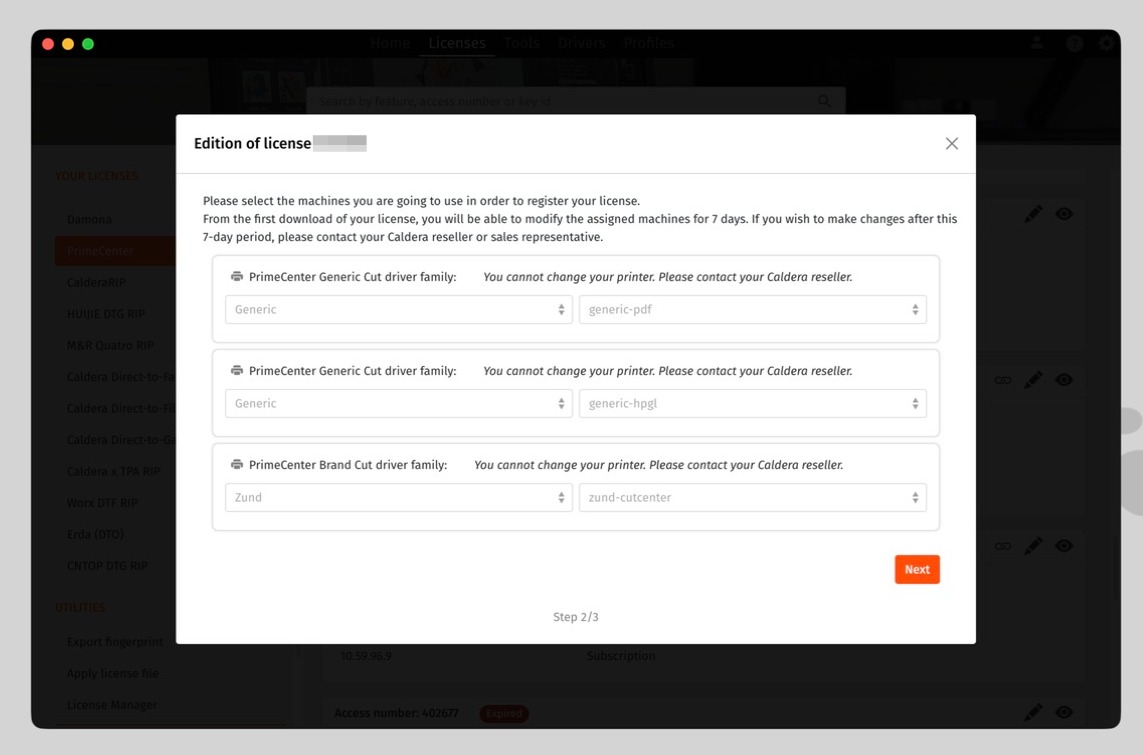
Verify or make any necessary changes to the devices linked to your license:
-
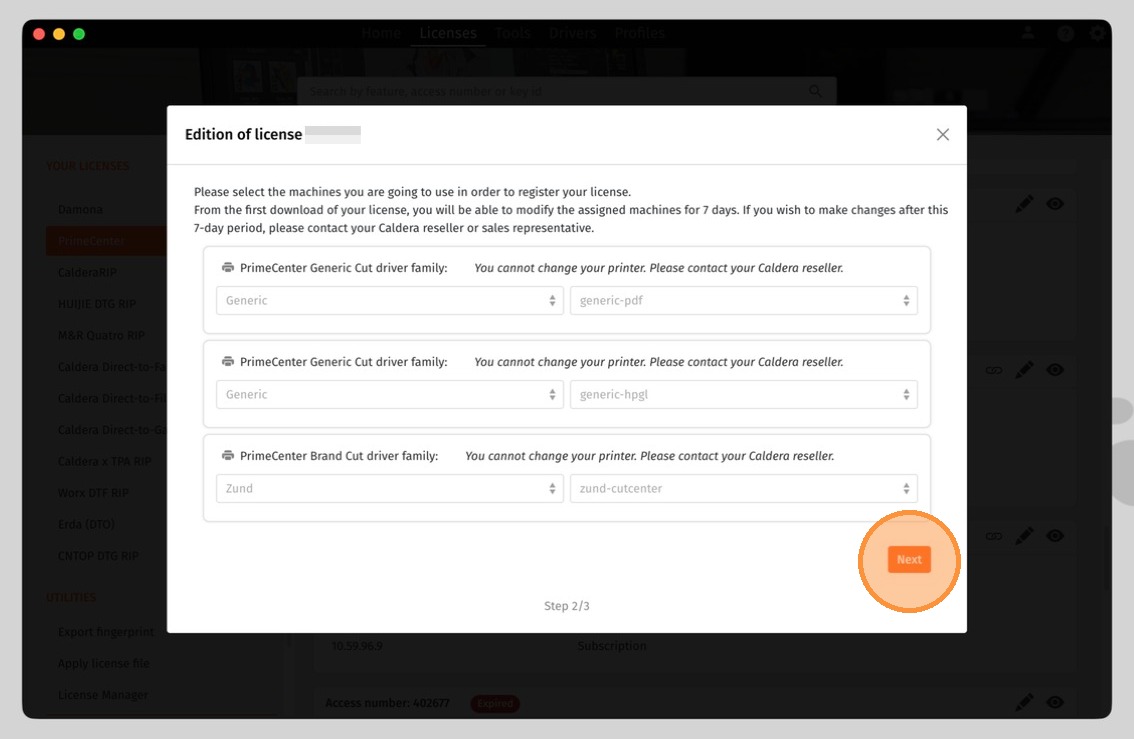
Click Next:
-
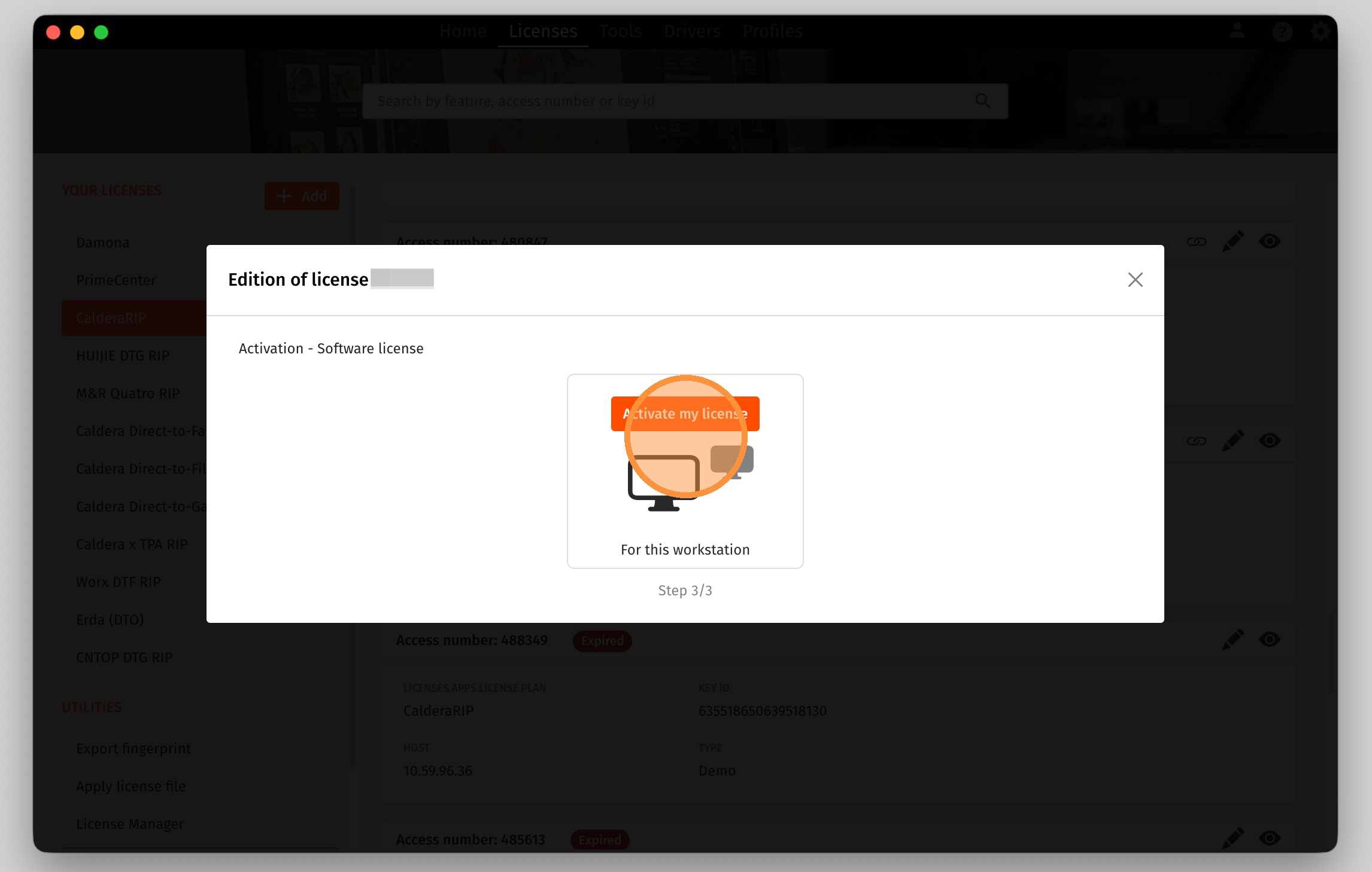
You will be prompted to activate the license again, which will apply any changes made to the linked devices:
-
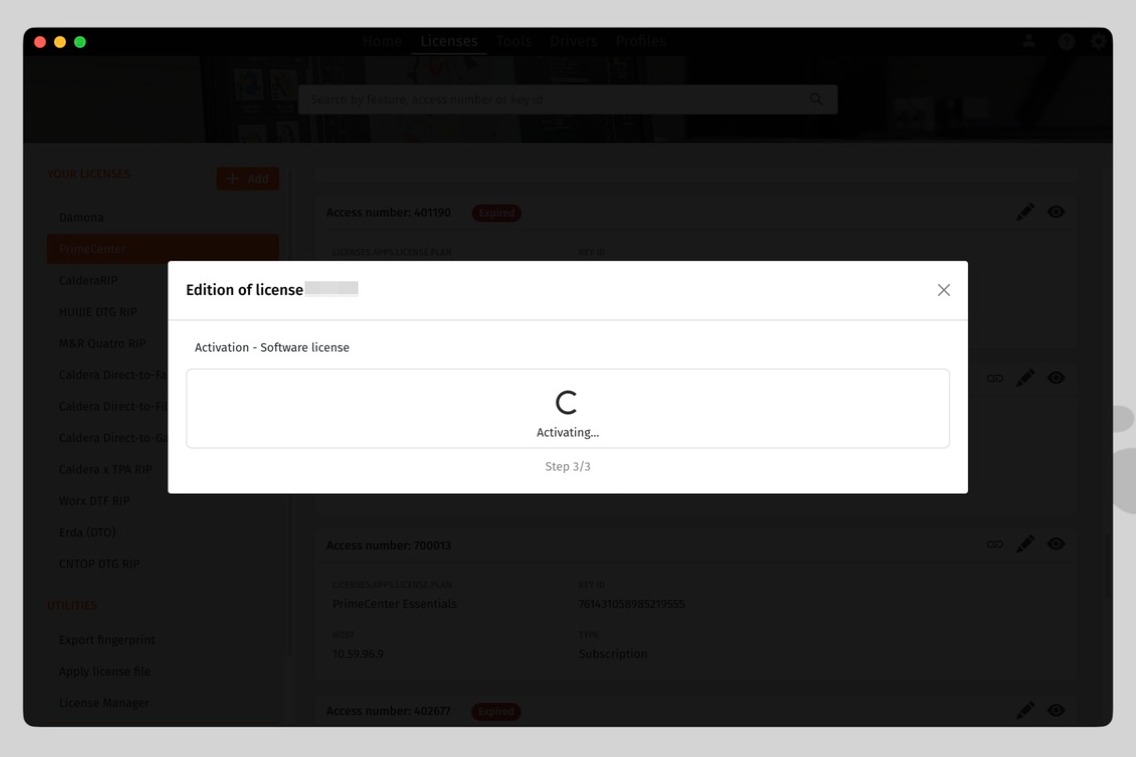
Wait for the changes to be applied:
-
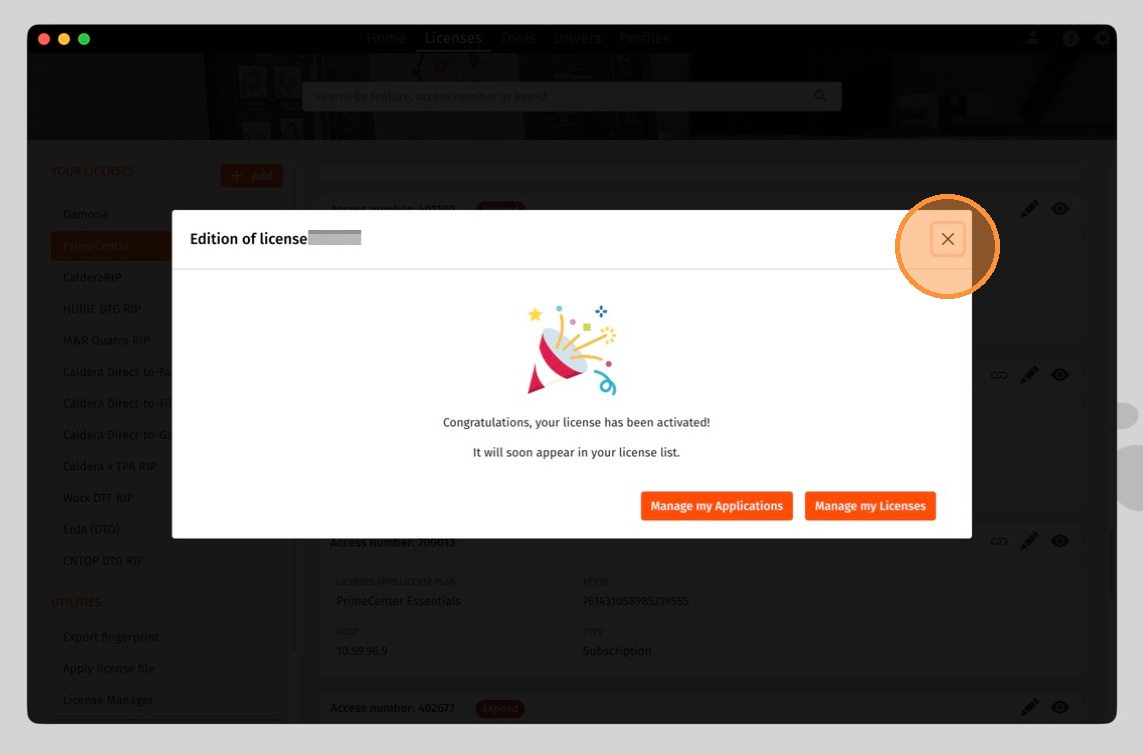
License editing is complete. You can click the buttons below to go to the Home or Licenses tab, or simply close the window:
Good to know
In most cases, the license update is applied immediately in CalderaDock.
- If you need to force the license update, refer to this article.
- If the license was updated but the software does not detect the change, restart the software using the Restart Services Utility.
Alternative method: assign drivers in WorkSpace
If you cannot complete the assignment in CalderaDock, you can use WorkSpace.
- Sign in to your Caldera account in WorkSpace.
- Open the My Registered Licenses section from the main dashboard or from your account menu:
- In the My Licenses tab, locate the relevant license and click the Edit icon in the Actions column.
-
In the Assign your Machines section, you can manage your driver assignment:
- Click Continue to save your changes.
Assign a driver to a software license that has not yet been activated
For a new software license, driver assignment is done during software license activation.
Warning
After the first assignment, you can modify the assigned machines for 7 days. After this period, contact your Caldera reseller or sales representative to request any further changes.
Next steps
Once the driver is assigned to your license, you can install the device in your software. Refer to the article that matches your product:
- CalderaRIP:
- PrimeCenter:
- Caldera Direct-to-X RIP: