Articles in this section

ApplicationBar - Menus

  Info

In CalderaRIP V17.0, the menus of the Application Bar were changed (see changelog). Depending on your version, you may see them as follows:

V17.X or after
Application Menu_Edited.png
V17 or before
appbar-menus_Previous version.png


File

File Menu_App Bar.png


In this menu, you will find all the functions needed to open, save, delete, and print your images:

File Menu_App Bar.png
  • Open: Launches the Fileman module for you to import an image.
  • Preview: Opens the image in the Display module, if selected in the Image Bar.
  • Copy: Creates and saves a copy of an image to the same tab, if selected in the Image Bar.
  • Delete: Deletes an image, if selected in the Image Bar.
  • Quit: Closes all open modules and quits the software.


Modules

Menus Bar_Menus.png


This menu allows you to launch some of the most useful modules quickly:

Modules Menu_App Bar.png


Configuration

Configuration Menu_App Bar.png


This menu is used for quick access to different settings of your CalderaRIP:

Configuration Menu_App Bar.png
  • Global: Opens the Config module, where you can customize the content of your Application Bar and also do some global configurations (like changing the language or the color of the CalderaRIP interface)
  • Color: Opens the Color Configuration window where you can access global color management settings, add default color profiles, or select the monitor profile for rendering.
  • Workflow Editor: Launches the Workflow Editor.
  • Hotfolder: Opens the Hotfolders window.
  • Nexio: Opens the Caldera's Nexio configuration window
  • HPGL: Opens the HPGL Options window
  • Adobe PDF Print Engine: Opens the Adobe PDF Print Engine window


Help

Application Bar_Help Menu.png


This menu allows you to consult details about your product, as well as related documentation:

Help Bar Menu_App Bar.png
  • Getting started, Documentation and See changelog: These menu options will take you directly to the corresponding CalderaRIP's HelpDesk sections.
  • License: Opens the Key Manager window [Deprecated in V17.2].
  • Software log history: Opens a window where you can check all the previous updates and installed drivers.
  • About this software: Displays the splash screen with the software’s name, access number, Host ID, version, and build number.
  • Copyright: This option allows you to download PDF documents concerning the intellectual property of CalderaRIP and our business partners.


Applications

Application Menu_Edited.png


This menu is displayed when you right-click somewhere in the tabs:
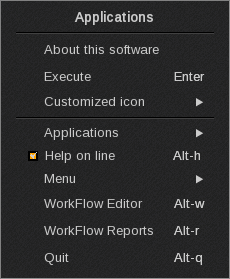
  • About this software: Displays the splash screen with the software’s name, access number, Host ID, version, and build number.
  • Execute: Opens the Application chosen in the main tab.
  • Customized icon: Customizes the selected Application icon. You can change its shape (DesktopSmallMediumLarge or Flatbed printer, Digital Press or Copier) and color (StandardRedYellowGreenBlue or Purple).
  • Applications: It shows you, as a list, all the applications available on your RIP station.
  • Help on line. This option enables/disables the tooltips present throughout the software:
    • Example, when enabled:
      CalderaRIP - tooltip enabled.png
    • When disabled:
      CalderaRIP - tooltip disabled.png
  • Menu: Allows you to choose from having all the menus seen in this article at the top of the Application Bar or the top of the Image Bar.
  • Workflow Editor: Launches the Workflow Editor.
  • Workflow Reports: Launches the Workflow Reports window to show the status of workflow jobs.
  • Quit: Closes all open modules and quits the software.
Was this article helpful?
0 out of 0 found this helpful