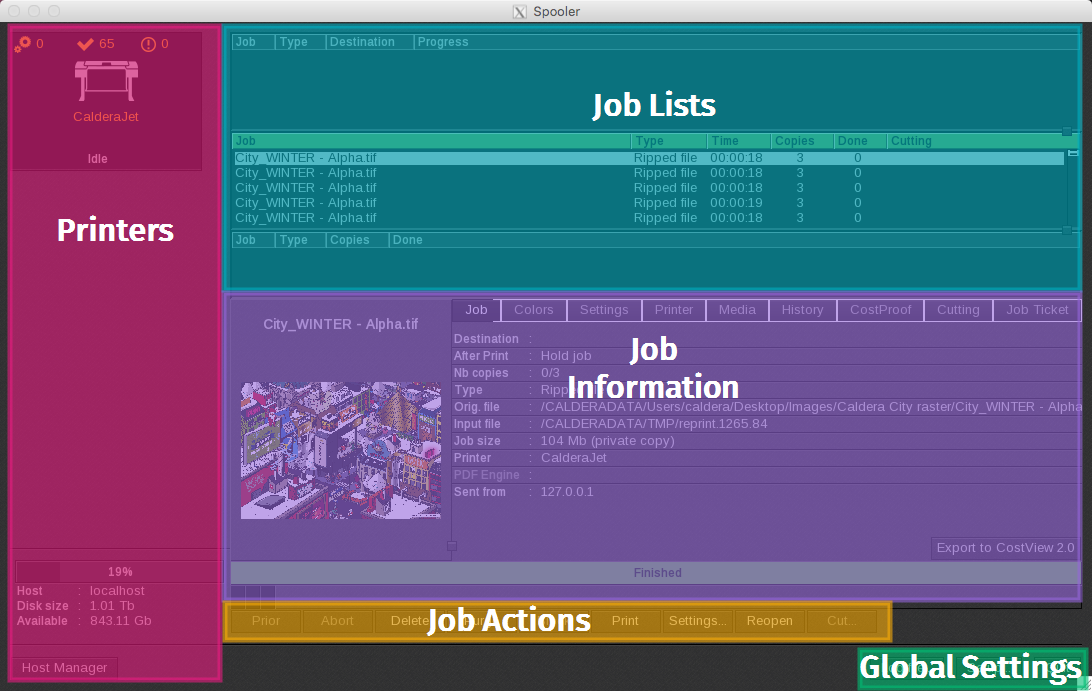
This article outlines the main Spooler features and explains how to open the Spooler module, which manages jobs submitted to CalderaRIP.
The Spooler displays completed, active, and pending jobs. From the Spooler window, you can monitor job status and manage jobs, including aborting or reprinting them: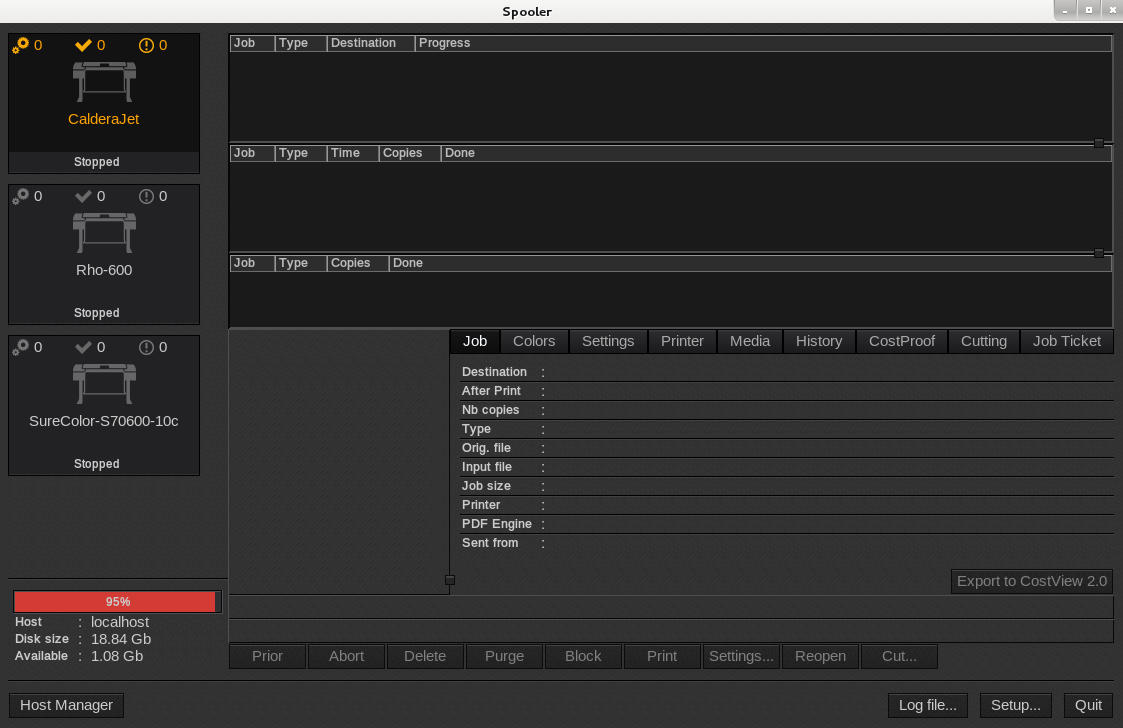
Good to know
The module continues to run in the background when its window is closed.
Continue reading this article or watch the quick overview video below:
How to access the Spooler?
Use one of the following methods to open the Spooler window.
Method 1: From the desktop
If available (especially on Linux installations), double-click the Spooler icon on the desktop:

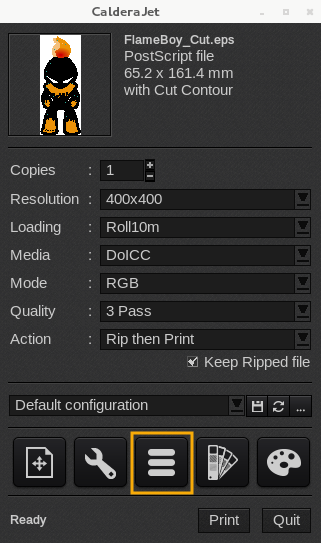
Method 2: From the Print module
In the Print module, double-click the Spooler icon:
Method 3: From the Settings tab
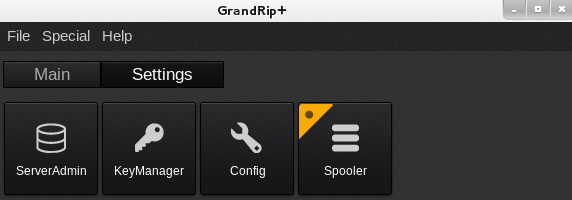
- In the Application Bar, select the Settings tab.
- Double-click the Spooler icon:
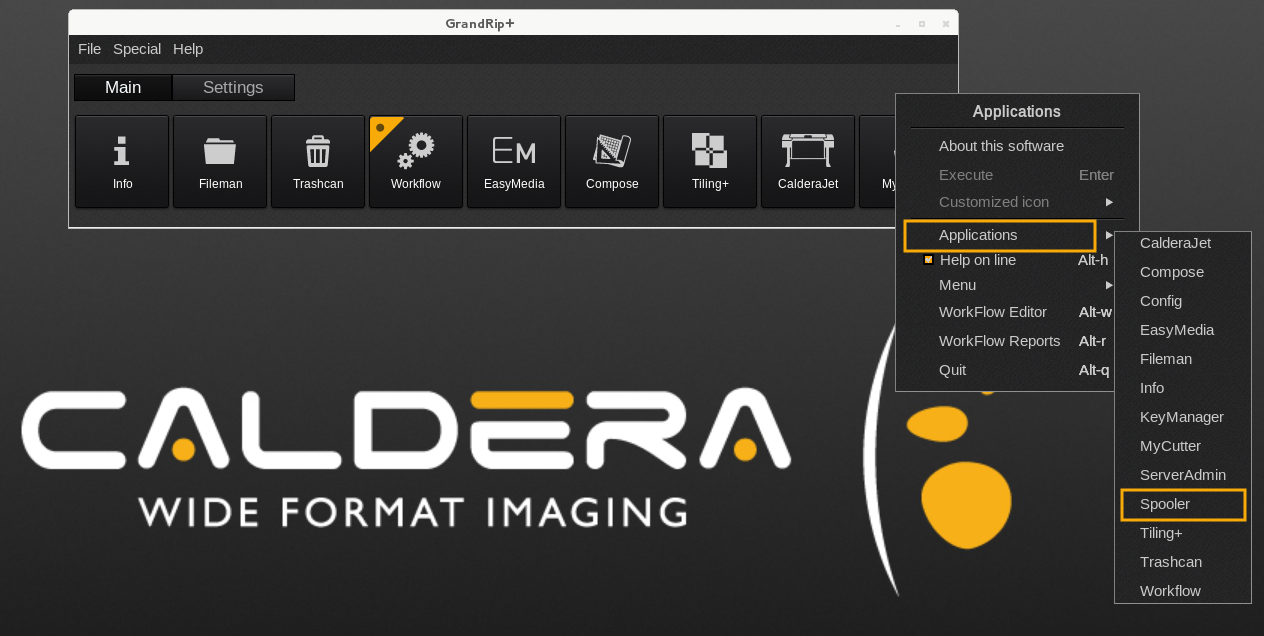
Method 4: From the Applications menu
- In the Application Bar, right-click to open the Applications menu.
- Select Applications > Spooler:
Interface Overview
The Spooler interface is divided into five main sections. Select a section below to learn more: