This article guides you through the process of requesting a demo license for Caldera solutions, so you can explore how our products can help improve your productivity.
Prerequisites
- Make sure your system meets the minimum requirements.
- Use a supported operating system.
-
Make sure the workstation has an Internet connection to request and activate the demo license.
Info
If your workstation is subject to network restrictions or if you experience issues with CalderaDock, please contact our Sales team to request a demo license instead.
1. Create a Caldera Account
To create an account, go to Caldera’s customer portal, WorkSpace, and complete the account creation form. You will then receive an activation email.
You may also find the following resources helpful:
- Complete guide to creating a Caldera account (with a video).
- Caldera's ecosystem: All the platforms that help you get the most out of our products.
2. Request a Demo License
- Install and open CalderaDock.
- Download CalderaDock 3.9 or later from the main dashboard in WorkSpace.
- Install and open the application on your workstation. If needed, see the dedicated installation guide.
- If you are not signed in yet, sign in with your Caldera account to continue:

-
In the Home tab, click on the button to request a demo license:

Info
You can also find the button to request a demo license at the bottom left of the Licenses tab.
- Select the product for which you require a demo license:

- Select the reason why you need a demo license:
- In the last field, you can tell us more about yourself and your production needs:

- Click on the "Submit Request" button when you are done:

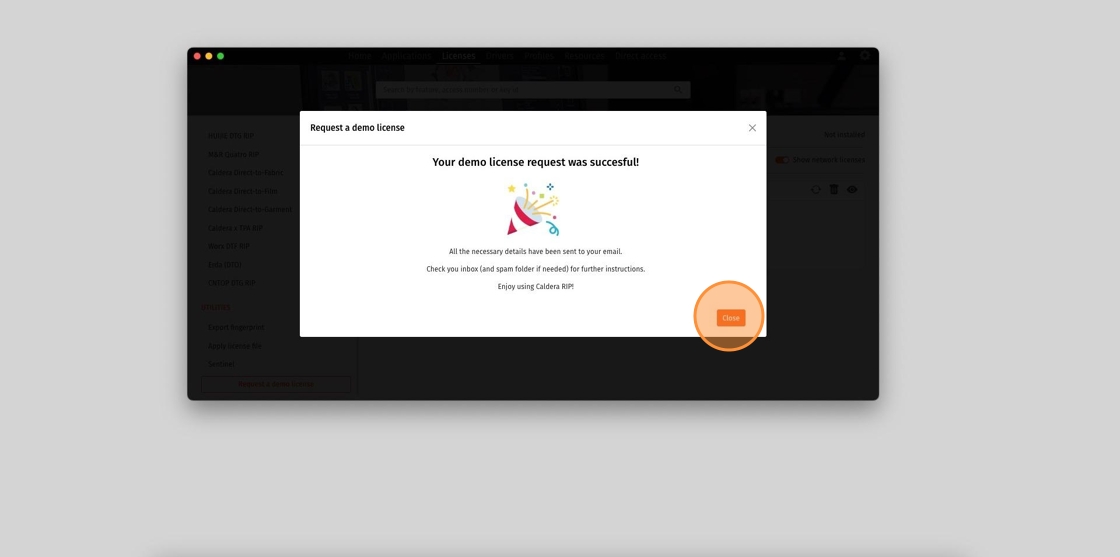
- Your demo license request was successful! You can now close the form:
-
Now, check your email. You will receive a message containing an access number and an activation code, along with additional steps outlined in this article:
Good to know
If you do not see it in your inbox, please also check your Spam folder.
If you or your organization use an email security service such as Mailinblack, make sure the following email addresses are added to your allowlist to ensure uninterrupted communication:- no-reply@dovercorp.com / dovercorp.com
- no-reply@caldera.com / caldera.com
- resetpassword@caldera.com / caldera.com
3. (Optional) Renew a Demo License
If you were unable to try the software during your demo license period, or would like to try it again, you can renew your demo license.
Info
Have your 6-digit license access number ready, as it will be required for the request.
- Open CalderaDock.
- If you haven't signed in yet, please sign in to your Caldera account:
- Navigate to the Licenses tab. At the bottom of the left panel, click on “Renew a Demo License”:
- Complete the form by entering the access number for the demo license you wish to renew, selecting the reason for the trial, and providing some information about yourself and your production needs.
- When you submit your renewal request, you will receive one of two possible messages:
- "Your demo license renewal was successful! 🎉": After seeing this message, you will receive an email with the original demo license details and the update to its validity period.
- If you have already activated the license, simply wait a few minutes or restart CalderaDock for the license update to take effect. Once updated, you can restart the Caldera software and continue your trial.
- If you have not activated the license yet, please do so.
- "License request rejected": This message indicates that you have exceeded the limit of demo license renewal requests for your account type. No action is needed, as our team will be notified and will contact you.
If you need immediate assistance, you can reach out to support using the link provided below the rejection message.
- "Your demo license renewal was successful! 🎉": After seeing this message, you will receive an email with the original demo license details and the update to its validity period.
Next Steps
After requesting your demo license, complete the remaining steps in CalderaDock, including license activation and product installation.
For detailed instructions, refer to the following:
| Installation Guides | First Use Guides |